


Windows Booting Too Slowly? Disable Startup Apps with These 5 Methods
By selma čitakovićon 01/25/2026 |
If your computer is sluggish and takes ages to boot, chances are you have too many startup programs enabled. Some of them are active for good reason, since they're important services for your system. But do you really need Skype or Spotify at startup? I don't think so. In any case, it's worth taking a look and doing some cleanup.
I've covered five different methods for disabling them. Check them all out, since Windows tends to spread your startup apps over several locations. You won't find them all on Task Manager, for example. I arranged them based on simplicity and the range of services they cover. Let's do this!
Task Manager
Task Manager is usually the first place you'll check when hunting down unnecessary startup programs.
- Type Task Manager in Windows Search and open it.
- Click on the Startup apps tab on the left.
- Go through the list and select the ones you want to turn off, and click on the Disable button in the top right.
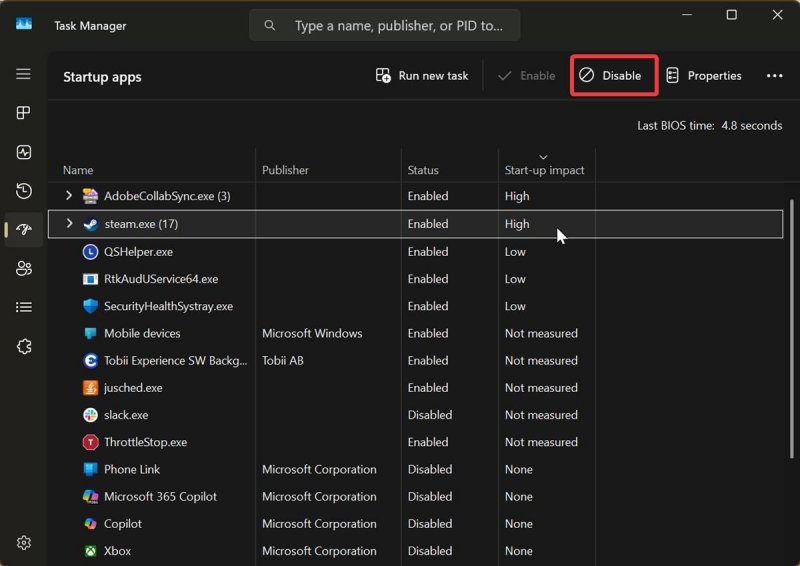
Task Manager shows you the status for each service and its startup impact. According to Microsoft support, here's what they mean:
- None - the program is inactive
- Low Impact - total CPU usage takes < 300ms and total disk usage is < 292KB.
- Medium Impact - total CPU usage is between 300ms and 1s, or total disk usage is between 292KB and 3MB.
- High Impact - total CPU usage takes > 1s or total disk usage is > 3MB.
- Not Measured - no data is available to measure the impact.
It would be nice if these explanations were available right there in Task Manager, but hey.
You can also check out your Last BIOS time in the upper-right corner. It shows you the precise timing for how long it takes your BIOS/UEFI firmware to boot before booting Windows. My last BIOS time was 4.8 seconds, for example.
Windows Settings
Settings covers the same list of apps as Task Manager. It just presents them in a more streamlined way, with slightly fewer details. You can't directly access the Properties for each program, for example. So, you can treat this method as a slightly simplified alternative to Task Manager:
- Open Windows Settings, and go to Apps > Startup.
- Browse the list and toggle off the ones you want to disable.
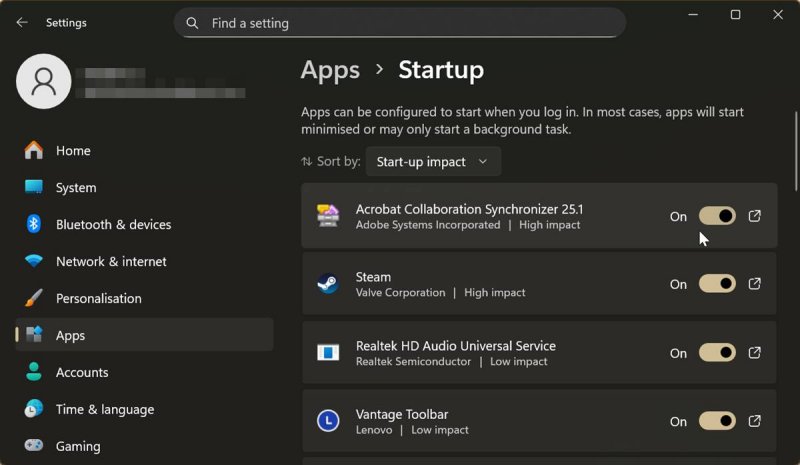
You can sort them by startup impact, status, and name.
Startup Folder
Now, some startup apps will be missing from both Task Manager and Windows Settings. You can look for them in the Startup folder in File Explorer instead. Maybe you've even previously configured some programs there and forgot about them. In any case, it's time to pay them a visit.
You can find the folder in %userprofile%\AppData\Roaming\Microsoft\Windows\Start Menu\Programs\Startup.
Or if you're too cool for that, you can use a shortcut:
- Press Windows key + R to open the Run dialog box.
- Type in shell:startup and hit Enter.
You'll instantly open the folder.
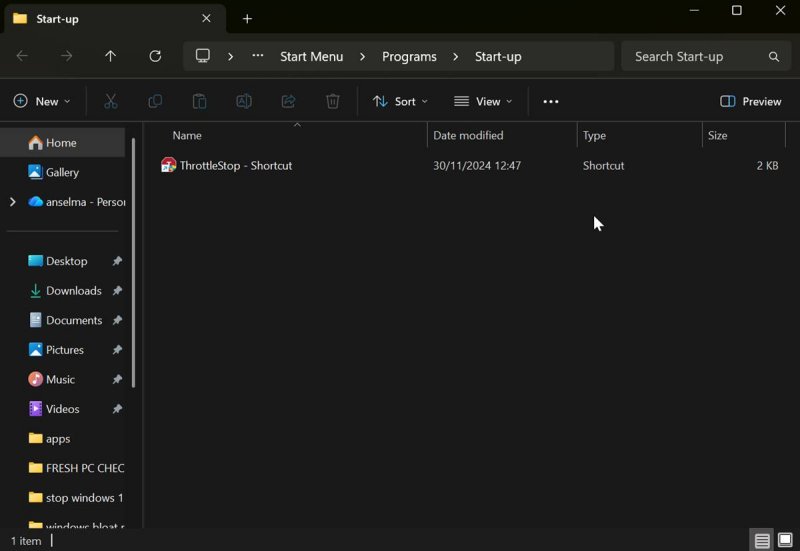
Either way, you can delete the shortcuts from the programs you want to disable at startup. In my case, I didn't delete ThrottleStop because I need it for my constant undervolt.
However, the above steps apply to the current user profile. If you want to gain access to apps for all users, you can go to %ProgramData%\Microsoft\Windows\Start Menu\Programs\Startup. Or, just type in shell:common startup in the Run dialog box.
Autoruns
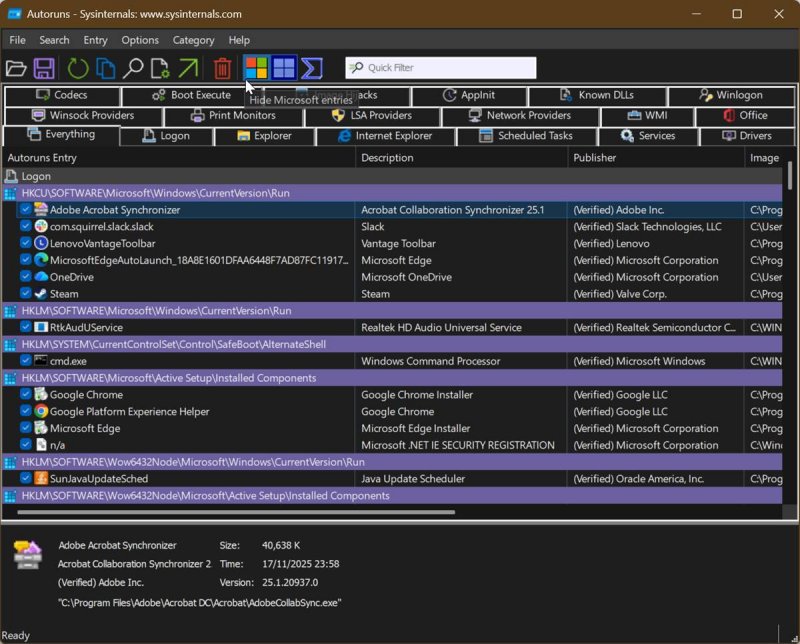
Autoruns is a startup manager made by Microsoft. You can view autostarts from various categories. It includes apps from your startup folder, RunOnce, Run, and your registry. So, it covers anything you couldn't find using the previous methods. It also reports logon entries, Windows Services and Winsock Layered Service Providers, boot execute images, and more.
You don't have to install anything; just unzip the folder and double-click Autoruns.exe. And don't get too intimidated by the UI. It has a lot of tabs, but it's pretty simple to use.
I recommend that you click on Hide Microsoft Entries and Hide Windows Entries to focus on third-party programs. You don't want to accidentally turn off a vital service. To disable an entry, just uncheck it from the list. You can also delete auto-start configuration entries by clicking on the red trash can icon in the top bar.
Windows Registry
I saved this step for last, because it has the most potential for things to go wrong. The Windows Registry lists all startup apps, but editing is risky business unless you know what you're doing. If you make a mistake, you could make your system unstable or even prevent it from booting.
So, it's a good idea to set up a System Restore point for situations like this. Also, you should back up the registry folder you're about to change. Here's how:
- Type Registry Editor in Windows Search and run it as administrator.
- In the address bar at the top, paste: HKEY_LOCAL_MACHINE\SOFTWARE\Microsoft\Windows\CurrentVersion\Explorer\StartupApproved\Run
- On the left side, select the StartupApproved folder, right-click it, and select Export.
- Rename it as something you'll remember later (helpmyregistryexploded.reg, for example), and click on Save.
With that out of the way, let's get editing:
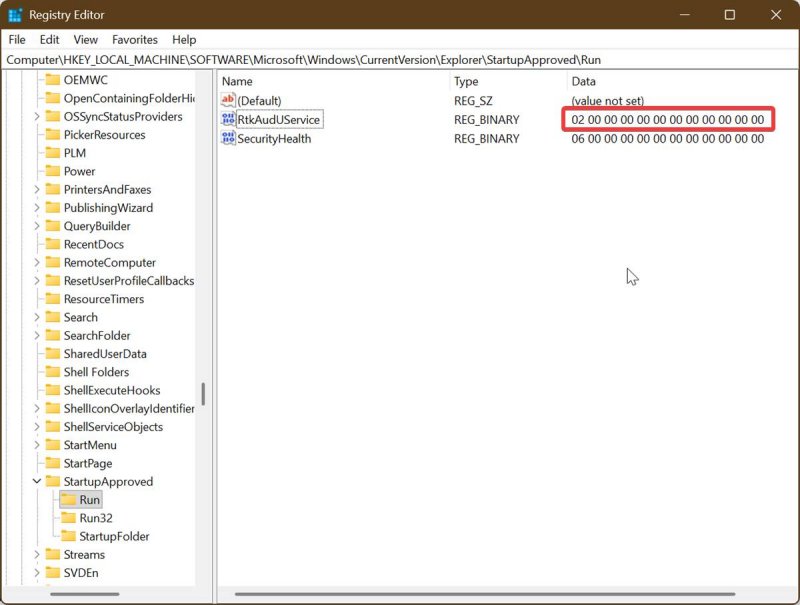
- Click on the Run folder and pay attention to the entries on the right side. If their Data value starts with a "02", they're enabled at startup.
- Double-click the ones you want to change, and type "03" in the value data field to disable them.
Again, I recommend that you Google any services before disabling them, just to be sure. In general, using Autoruns for this task is a smarter idea because it has the same level of access, but you're much less likely to mess anything up.
And there you go! No startup app is safe from you now. You can use Task Manager and Windows Settings for the same tweaks. The Startup folder slightly expands your range of programs, while Autoruns and Windows Registry grant you access to pretty much everything. But remember, with great power comes great responsibility, and so on.
