


Which Windows Services Are Safe To Disable?
By selma čitakovićon 03/12/2026 |
Disabling Windows Services is dicey business unless you know what you're doing. There are many dependencies, and it's often unclear what else you're deactivating. To make things easier, some programs and scripts can disable a bunch of services at once, mostly without risk. But if you'd prefer a more selective approach, with handpicked services and explanations for each, this guide is for you.
One more thing:
Many guides promise amazing performance after doing this, without providing any evidence for this claim. In truth, on modern systems, disabling these services won't give a huge boost to your performance; that's a thing of the past. However, if you want to reduce bloat, slightly speed up your startup times, or you just like tinkering and optimizing your system (as is your right), dig in.
How to disable services
It's a fairly simple process, so I'll demonstrate it once, as there's no need for me to repeat the same steps 13 times in a row. Or for you to read all that.
Here it is:
- Press Win + R and type services.msc and hit Enter. Or, just look up Services on Windows Search.
- You'll see a list of services on the right. Simply find the one you want to deactivate (for example, Connected User Experiences and Telemetry), and double-click it.
- In the window that pops up, select Disabled as Startup type.
- Also, if the service is currently running, hit the Stop button.
- Click OK and Apply.

That's it for almost every service here. If there's anything different, I'll specify.
Also, just in case your finger slips and you turn off something you shouldn't, create a restore point that you can easily revert to if things go south.
Windows Services that are safe to disable
Some of these recommendations depend on your usage habits. For example, if you use Xbox services on your PC, you obviously don't want to disable them. I'll point out any dependencies so you don't accidentally deactivate something you rely on.
Moreover, I've arranged everything alphabetically, so you can open Services, scroll down, and disable them in order.
Connected User Experiences and Telemetry
Connected User Experiences and Telemetry sends diagnostic and usage data to Microsoft so it can supposedly improve the Windows platform. If you're not too keen on Windows spying on you, you can turn it off without any problems.
Delivery Optimization (via Settings)
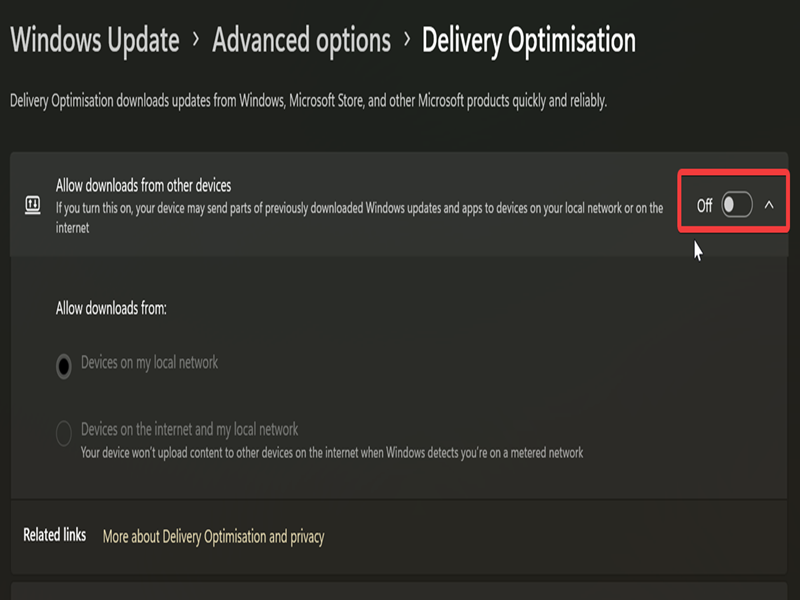
Windows Update and other services rely on Delivery Optimization to quickly download data packages. However, it's often configured to share the downloading "burden" with other devices. You can allow downloads from other devices on your local network, or local network + internet. If you value your bandwidth, you can limit the service by doing this:
- Go to Settings > Windows Update > Advanced Options > Delivery Optimization.
- Toggle off Allow downloads from other devices.
Downloaded Maps Manager
If you use the Windows Maps app, keep it on. Otherwise, feel free to fully disable it. This background service manages offline maps and keeps them up to date.
Netlogon
If you're not part of a domain network, turn it off. Netlogon allows users and other domain services to get authenticated.
Parental Controls
This service enforces parental controls on child accounts in Windows. If you don't have any, go ahead and deactivate it.
Phone service
Phone service manages telephony features (calls and messages, for example) on your PC. It's a legacy TAPI (Telephony Application Programming Interface) functionality that's unnecessary on modern Windows PCs.
Remote desktop features
If you don't connect to remote desktop sessions, turn off the following three services:
- Remote Desktop Configuration
- Remote Desktop Services
- Remote Desktop Services UserMode Port Redirector.
Retail Demo Service
Retail Demo allows PCs on display in stores to enter demonstration mode for customers to try out. Funnily enough, it's always enabled by default for no good reason.
Smart Card features
If you don't use Smart Card login, turn off the following services:
- Smart Card
- Smart Card Device Enumeration Service
- Smart Card Removal Policy.
Windows Insider Service
If you're not part of the Windows Insider program, disable it. This service provides infrastructure support for it.
Windows Mobile Hotspot Service
You can turn your PC into a mobile hotspot and share your connection with other devices. If you don't use this feature, you can turn it off.
Work Folders
This service allows you to sync files with the Work Folders server. If your organization doesn't rely on it, just deactivate it.
Xbox features
If you're not an Xbox gamer, go ahead and disable all of these:
- Xbox Accessory Management Service
- Xbox Live Auth Manager
- Xbox Live Game Save
- Xbox Live Networking Service.
All in all, this shouldn't take more than a few minutes of your time. You should also restart once you're done.
If you know of any additions to the list that are definitely safe, feel free to share below! Geeks should always share, and all that.

|
selma citakovic
Selma is a gamer, geek and gremlin hunter with a passion for cyber security and smashing Windows bugs before they bite. She’s IBM-certified, loves real freeware, despises bloatware, and powers most of her troubleshooting with an unhealthy amount of coffee. |
comments powered by Disqus
