


What is a '400 Bad Request - Request Header or Cookie Too Large' Error and How to Fix It
By Jon Ben-Mayoron 11/24/2025 |
At some point, you have likely encountered a '400 Bad Request - Request Header or Cookie Too Large' NGINX error. It's a pain, and it prevents you from reaching your intended destination.

The error message "400 Bad Request - Request Header or Cookie Too Large" signifies that the server is unable to process the request due to the size of the request header or the associated cookies being excessively large. This typically occurs when the amount of data being sent is beyond the server's limits for headers or cookies, preventing successful communication.
This issue occurs when a server is unable to process an incoming request because the size of the request header or cookies exceeds the limits set by the server configuration. This specifically relates to NGINX servers. Typically, this situation occurs when a website excessively utilizes cookies to store substantial amounts of data, such as user preferences, session identifiers, and other information that may be useful for maintaining a personalized experience.
Additionally, the request header itself, which conveys essential details about the request, such as the user's identity, authentication tokens, browser information, and content preferences, can become oversized if it includes excessive metadata or multiple cookies. When either the request header or cookie data exceeds the predefined size limits, the server responds with an error, often indicating that the payload is too large to process.
To prevent this, websites can (should) optimize their use of cookies, limiting the amount of information stored and ensuring that individual cookie sizes remain within acceptable thresholds. Additionally, developers can implement techniques such as server-side session management to reduce reliance on cookie-based data storage.
However, for the average user, a simple remedy is available that works most of the time.
For Google Chrome, type chrome://settings/content/all in the address bar. Once that pops open, search the site that returned the 400 Bad Request, and then delete the displayed data for that site. Any logins, etc., will be removed, so make sure you know your details beforehand.


Microsoft Edge operates similarly to Chrome. To find your target site, go to edge://settings/sitedata and search for it.
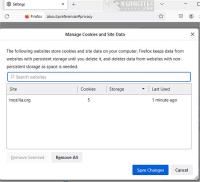
For Mozilla Firefox, you will need to head up to the top right hamburger. Go to settings, select Privacy and Security, then Manage Data. From there, search and select the offending site, then click Remove Selected, and finally click Save Changes.

The above fixes should resolve the offending items causing the error, allowing you to return to browsing your intended website. Good luck!
comments powered by Disqus
What Is It and Why Does It Happen?
The error message "400 Bad Request - Request Header or Cookie Too Large" signifies that the server is unable to process the request due to the size of the request header or the associated cookies being excessively large. This typically occurs when the amount of data being sent is beyond the server's limits for headers or cookies, preventing successful communication.
This issue occurs when a server is unable to process an incoming request because the size of the request header or cookies exceeds the limits set by the server configuration. This specifically relates to NGINX servers. Typically, this situation occurs when a website excessively utilizes cookies to store substantial amounts of data, such as user preferences, session identifiers, and other information that may be useful for maintaining a personalized experience.
Additionally, the request header itself, which conveys essential details about the request, such as the user's identity, authentication tokens, browser information, and content preferences, can become oversized if it includes excessive metadata or multiple cookies. When either the request header or cookie data exceeds the predefined size limits, the server responds with an error, often indicating that the payload is too large to process.
Prevention and Remedy
To prevent this, websites can (should) optimize their use of cookies, limiting the amount of information stored and ensuring that individual cookie sizes remain within acceptable thresholds. Additionally, developers can implement techniques such as server-side session management to reduce reliance on cookie-based data storage.
However, for the average user, a simple remedy is available that works most of the time.
Google Chrome
For Google Chrome, type chrome://settings/content/all in the address bar. Once that pops open, search the site that returned the 400 Bad Request, and then delete the displayed data for that site. Any logins, etc., will be removed, so make sure you know your details beforehand.
Microsoft Edge
Microsoft Edge operates similarly to Chrome. To find your target site, go to edge://settings/sitedata and search for it.
Mozilla Firefox
For Mozilla Firefox, you will need to head up to the top right hamburger. Go to settings, select Privacy and Security, then Manage Data. From there, search and select the offending site, then click Remove Selected, and finally click Save Changes.
The above fixes should resolve the offending items causing the error, allowing you to return to browsing your intended website. Good luck!
comments powered by Disqus
