


The Windows Health And Monitoring Tools You Already Have
By selma čitakovićon 12/26/2025 |

Windows has a surprisingly decent collection of built-in monitoring and health check tools. You might not even know about some of them, since they're not immediately obvious. You'll have to dig through some menus to find them or look them up via Windows Search, but they're there. I've singled out nine utilities that track information about your disk, memory, processor, network, battery, and much more.
Let's see how each can help you!
Drive Health via System Settings
This useful feature was introduced in Windows 10 build 20226, but was then pulled in later updates in a classic Windows move. However, it's been back for a while now, and it's here to stay (or so it seems).
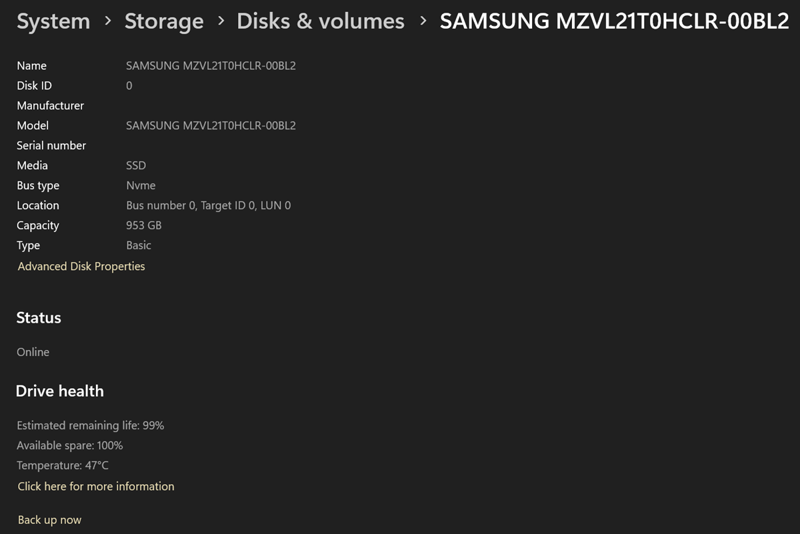
Anyway, you can find it in Settings > System > Storage > Advanced storage settings > Disks & volumes. Simply click on the Properties button for each drive and partition you want to examine.
It displays basic info like your disk's model, capacity, type, etc., and drive health information. You can see its estimated remaining life percentage, available spare, and temperature. It's no CrystalDiskInfo, but it does the job.
WMI (Windows Management Instrumentation)
WMI is a Microsoft framework that manages data about your system, hardware, and software. It collects info about various components, including your drive's S.M.A.R.T. information. You can use PowerShell to quickly look it up.
Here's how:
- Open PowerShell, type WMIC, and press Enter.
- Now, type diskdrive get status and press Enter.
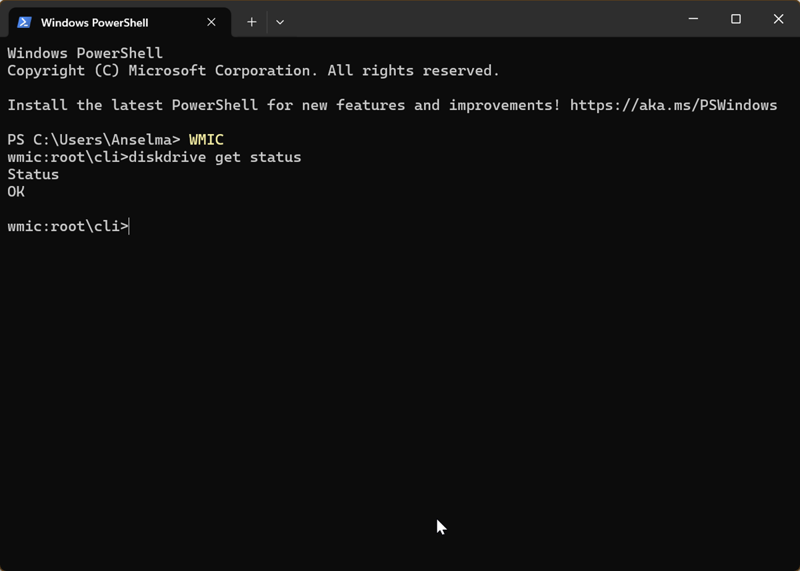
You'll see a short message. Most likely, it will be "Status OK." But if you get "Pred Fail" ("Prediction Failure"), you should back up your drive immediately.
If it detects any errors, you can look into them further by checking the S.M.A.R.T. predict failure results. Type wmic /namespace:rootwmi path MSStorageDriver_FailurePredictStatus in PowerShell.
CHKDSK (Check Disk)
CHKDSK searches your drive's file system for logical and physical errors. This command-line tool can locate bad sectors, recover information from them, and repair errors in general. If you just type in CHKDSK in elevated Command Prompt, without any extra parameters, it will run in read-only mode. This command will only display the volume's status.
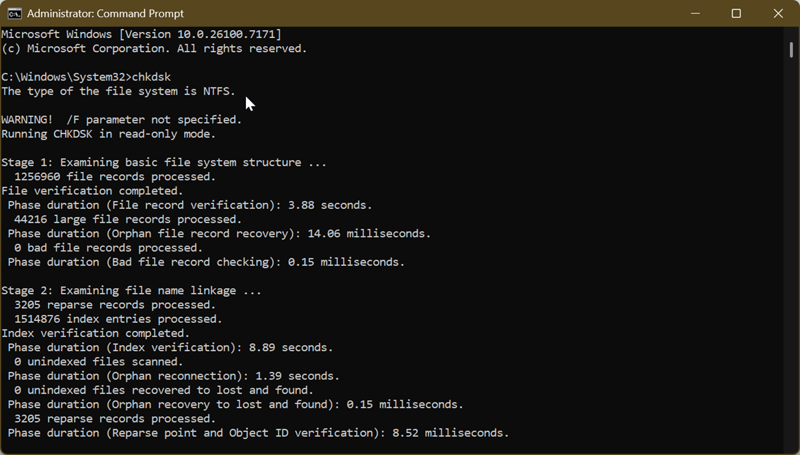
But if the scan detects errors, you can fix them by doing this:
- Type chkdsk /f to resolve disk errors.
- Type chkdsk /r to locate bad sectors and recover information.
Wait for each command to finish before executing the next one.
However, you shouldn't use CHKDSK if you're certain your drive is on its last legs. Running this command just might end it.
Performance Monitor
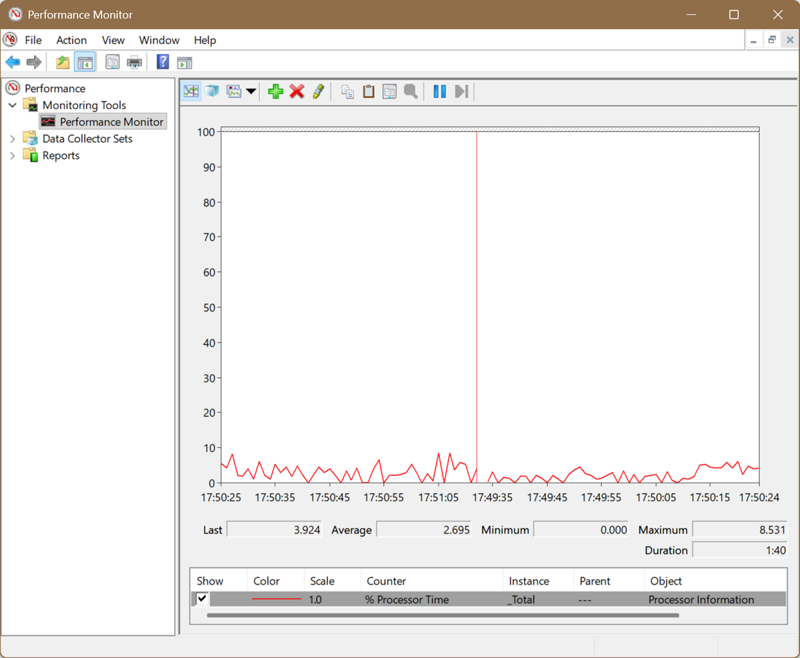
The Windows Performance Monitor lets you view real-time performance statistics and capture data over a certain period. You can find it by typing "Performance Monitor" in Windows Search. When you just open it, you'll see a system summary of your memory, network, and disk usage, processor information, etc.
However, if you click on the Performance Monitor icon on the left side pane, you'll see a graph depicting current activity for specific counters. The default counter is processor time, but you can add others, like system processes, server sessions, cache reads, and much more. Basically, anything you can measure. This can help you find resource bottlenecks and system inefficiencies.
Reliability Monitor
This monitor can assess your system's overall stability, or how often you're interrupted by application, Windows, and miscellaneous failures. To find it, type "Reliability Monitor" in Windows Search. You'll see a log of failures on a timeline, with red circles for critical events. Yellow triangles are warnings, while blue circles are informational events. It's kinda like Event Viewer, but easier to look at.
Additionally, it will rate your stability on a scale from 1 to 10 during a specific period. You can view technical details for each event. If you're experiencing crashes or freezes, it can help you diagnose problems.
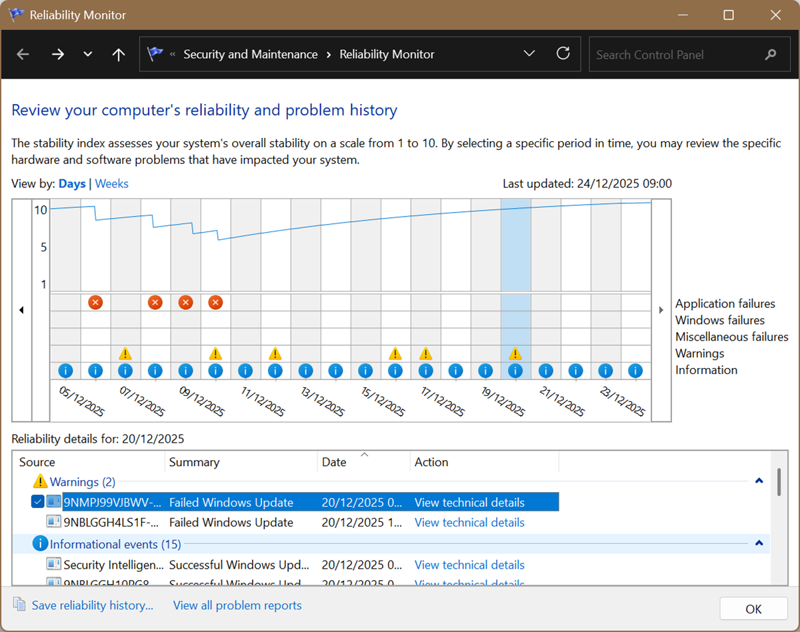
You can see I have some failed Windows updates there. What a devastating turn of events.
Resource Monitor
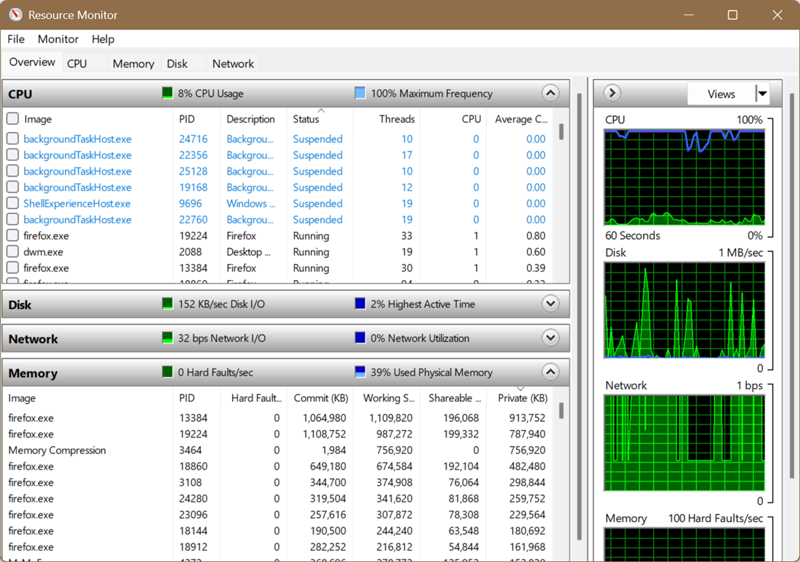
Look at that, another monitor! Like the previous tools, you can find it via Windows Search. Resource Monitor displays hardware and software resource usage in
real-time. It's like a more in-depth version of Task Manager.
The first tab presents an overview of CPU, disk, network, and memory usage. There are also separate tabs for each component. You can look at graphs and filter by processes if you're only interested in specific ones. It's a great tool for troubleshooting performance issues and identifying resource-intensive processes.
Windows Memory Diagnostic
Windows Memory Diagnostic can conduct RAM tests to detect memory issues. To bring it up, type "Windows Memory Diagnostic" in Search. You'll see a window asking you to restart now to check for problems, or the next time you start your computer.
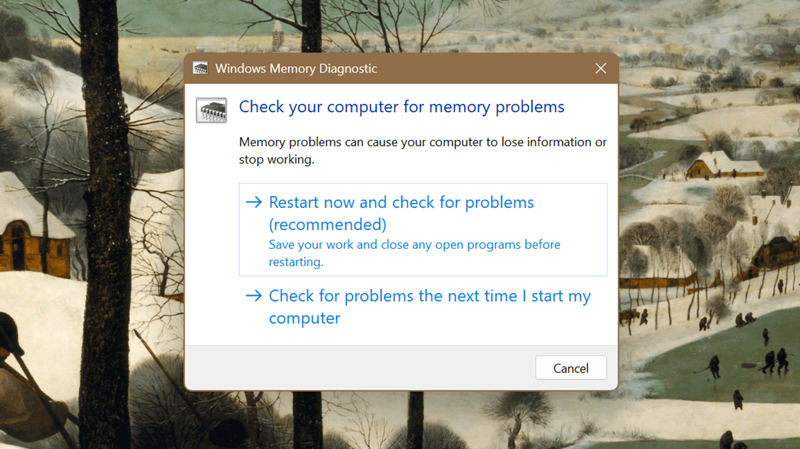
So, before you activate it, you should save what you're working on and close everything. Once you initiate it, you can choose to do a basic, standard, or extended test. Be aware that the extended option can take up to an hour, so only pick that if you're certain. You can find the scan results in a notification or Event Viewer after your PC reboots.
If everything is fine, you should see that it detected no errors.
Battery Report
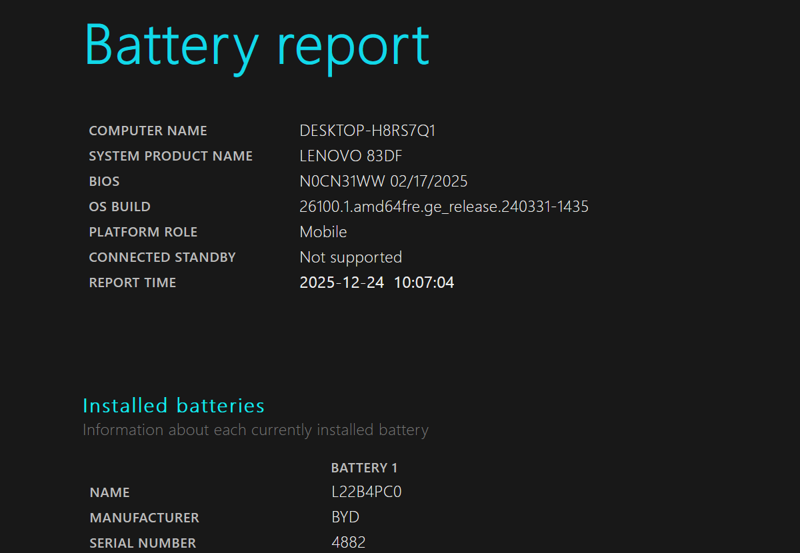
If you have a laptop, this might come in handy. You probably have a manufacturer's tool for monitoring your battery health and performance, but I find that this Windows report is more detailed. At least, compared to Lenovo Vantage info, in my case.
All you need to do is open PowerShell or Command Prompt (right-click the Start button), and type in: powercfg /batteryreport.
Windows will generate the HTML report file in the Users > Your Username folder. Double-click to open it, and you'll see:
- Basic information about installed batteries, including design capacity, full charge capacity, and cycle count.
- Recent usage - power states for the past week
- Battery usage - battery drains over the last week
- Usage history - in-depth history of system usage on AC and battery.
- Battery capacity history - charge capacity over a prolonged period.
Windows PC Health Check
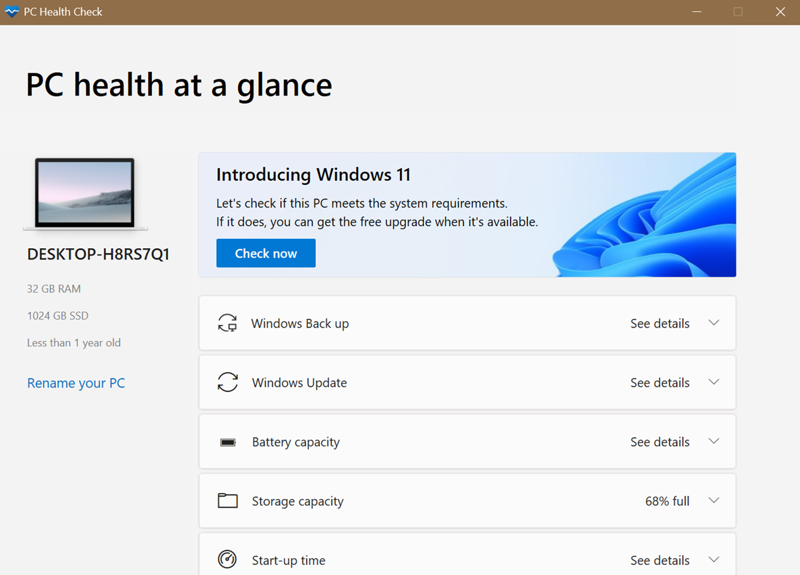
Windows PC Health Check is a system information tool that checks your system health, Windows Update status, battery capacity, storage capacity, and more. One of its main features is evaluating your system's readiness for Windows 11. However, it's not a "real" monitoring tool; it just provides quick access to relevant settings. You can see basic information about your storage, RAM, and battery, and that's pretty much it.
Still, it's useful if you find Windows Settings needlessly hard to navigate (who doesn't).
These were all the utilities I could find on Windows 11. Admittedly, some of them can't compare with third-party options, but I was pleasantly surprised by others. If you have any additions, feel free to share!

|
selma citakovic
Selma is a gamer, geek and gremlin hunter with a passion for cyber security and smashing Windows bugs before they bite. She’s IBM-certified, loves real freeware, despises bloatware, and powers most of her troubleshooting with an unhealthy amount of coffee. |
comments powered by Disqus
