


The Truth About Windows Fast Startup: Leave It On or Turn It Off?
By selma čitakovićon 01/03/2026 |
So, what's the deal with Fast Startup on Windows? If you look it up online, many people have an almost knee-jerk reaction to it and automatically recommend you disable it, without really going into the reasons why. But if you're curious (or nosy, like I am), you'll want to know why it gained such a reputation, and if there's more to it.
Below, I'll explain how this feature works, whether it's safe, how useful it is, and how to disable/enable it. Let's get started!
What does Fast Startup do?
Fast Startup is a Windows setting that helps you boot faster. It saves the system kernel and drivers to memory as a hibernation file, and loads it the next time you power on your PC. So, instead of the traditional startup method, where the boot loader has to construct a kernel memory image and configure everything from scratch, it skips a lot of these steps. The hibernation file (Hiberfil.sys) acts like a shortcut.
Additionally, it's different from the usual hibernate feature. Hibernate also saves user sessions and all open apps and files. So, Fast Startup is basically a combination of the traditional (cold) startup and wake-from-hibernation modes. That's also why it's often called a hybrid boot. It dates all the way back to Windows 8, when it was first introduced as Fast Boot.
One important distinction:
With Fast Startup enabled, shutting down your computer and then powering it back on doesn't count as a clean boot. It's not a complete shutdown. When you turn it back on, your PC will just resume and wake up from hibernation. Doing a restart, however, initiates a full boot cycle. This will come into play when I talk about the problems you might encounter with this feature.
Is it still useful in Windows 11?
Realistically, Fast Startup isn't that useful if you have an SSD. It's still on by default in Windows 11, but the speed boost is pretty modest. It will only save you a few seconds of waiting. This feature was way more helpful in the Windows 8 era, when HDDs were dominant. You could significantly shorten your boot times and shave off minutes with it. I remember turning on my computer and going to make myself coffee while it loads. That's no longer the case.
Nowadays, SSDs are already so much faster, with much better sequential read/write speeds. High-end HDDs can reach speeds over 200 MB/s, while even the slowest SATA SSDs easily reach 550 MB/s. Newer generation NVMe SSDs are on another level entirely, with the max read speed for the latest PCIe Gen 5 models reaching 14,000 MB/s.
Lastly, Fast Startup is marginally helpful if you own a laptop. It's more energy efficient and extends your battery usage if you boot from hibernate state.
When should you disable Fast Startup?
Generally speaking, Fast Startup is safe. But, due to its hybrid nature, it has a couple of quirks that might lead to complications. You should disable the feature if:
- You're having issues with Windows Updates - Windows Updates often require a full reboot to install. However, since Fast Startup hibernates your PC, updating and then shutting down won't work. You'll need to restart for the changes to take effect.
- You're having problems with driver updates - Similarly, you should restart your PC if you're updating drivers, or they won't install properly. If you shut down your PC and then boot it back on again with Fast Startup enabled, it will just resume your previous state, without the new drivers.
- You're dual-booting - If you're dual-booting with Linux, you may find that some partitions are locked by Windows in read-only mode, due to Fast Startup. Moreover, you may experience data loss or corruption if either OS hibernates instead of properly shutting down.
- You need more time to access BIOS/UEFI - Is your boot time *too fast*? It can be tricky to press the correct keys to access your BIOS/UEFI settings if your PC turns on in a flash.
Still, if you're having trouble installing updates, all you need to do is restart. Disabling Fast Startup isn't a must in those cases; it's mostly a preventive measure.
How to disable Windows Fast Startup
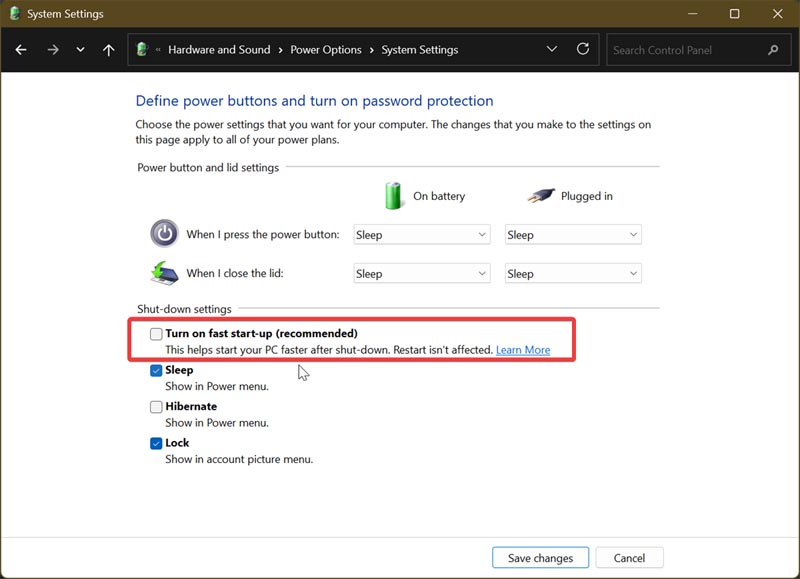
If you've made up your mind to turn off Fast Startup, follow these steps:
- Type Control Panel in Windows Search and open it.
- Go to System and Security > Power Options.
- Click on Choose what the power button does on the left side.
- Toggle off Turn on fast startup (recommended).
- If the option is greyed out, go to Change settings that are currently unavailable near the top.
- Click on Save changes in the corner when you're done.
And that's it!
If you'd like to keep it enabled, please remember to routinely restart your PC every once in a while. Your computer will be thankful, and I'll go to sleep easier knowing that I prevented a potential disaster.
All things considered, Fast Startup isn't as scary as some Reddit threads would lead you to believe. It's problematic only in specific situations, with the most serious problems happening if you're dual-booting. If you're having issues with updates not installing correctly, just restart. It's that simple.

|
selma citakovic
Selma is a gamer, geek and gremlin hunter with a passion for cyber security and smashing Windows bugs before they bite. She’s IBM-certified, loves real freeware, despises bloatware, and powers most of her troubleshooting with an unhealthy amount of coffee. |
comments powered by Disqus
