


How to Use Slmgr to View, Install, Uninstall, Activate, or Extend Your Windows License
By Timothy Tibbettson 06/30/2023 |
Windows licensing and activation can be a real hassle. We get it. Using PowerShell or the Command-Prompt and Software Licensing Management Tool (SLMGR), we can remove, install, change, or extend your Windows license on local and remote computers.
Even with no Windows or PowerShell experience, most will find using SLMGR easy.
Begin by opening PowerShell.
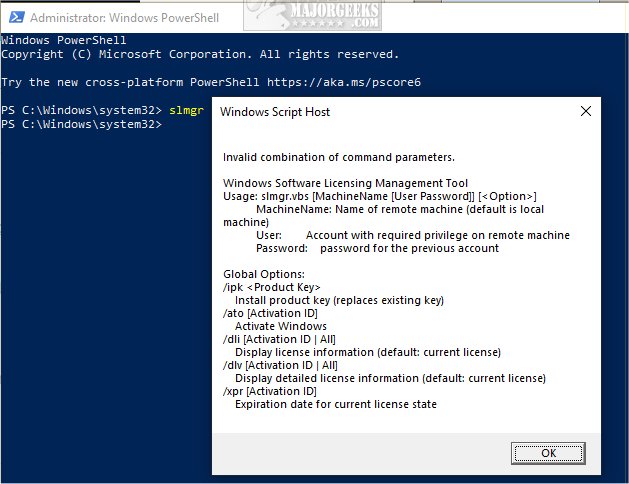
One nice feature of PowerShell is the available list of command parameters. As long as you have a valid command (slmgr), type it to see all available command parameters.
Get License Information
One of the best places to start is to find out your current license information:
slmgr.vbs /dli - Basic license information
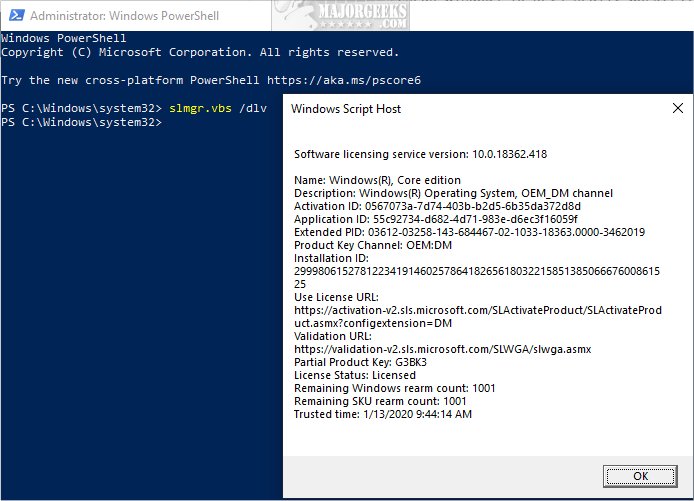
slmgr.vbs /dlv - Detailed license information
slmgr.vbs /xpr - License expiration date
Uninstall Current Product Key
You can uninstall your product key, allowing you to enter a new license. Most Windows product keys are tied to a computer, but in some cases, you can use the key on a different computer, although odds are you'll have to call Microsoft to validate and claim you changed your hardware.
slmgr.vbs /upk - Remove license from Windows
slmgr.vbs /cpky - Delete license from registry
To contact Microsoft, call 1 (800) 642-7676 or check the support page.
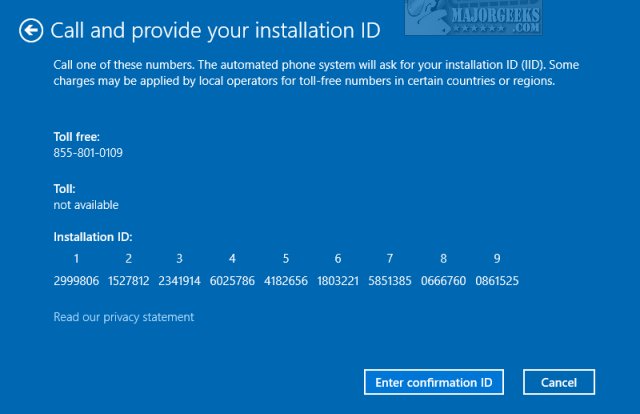
Optionally, you can press the Windows Key + R, type in slui.exe 4, hit Enter, and follow the prompts:
slmgr.vbs /atp ActivationID - Activate Windows offline using your Activation ID
Install Product Key
You can go to Start > Settings > Update & security > Activation to enter your product key or you can continue using PowerShell:
slmgr.vbs /ipk #####-#####-#####-#####-##### - Install a new key. Replace # with your product key.
Activate Windows
Again, you can go to Start > Settings > Update & security > Activation to activate Windows or you can continue using PowerShell:
slmgr.vbs /ato - Activate Windows online
slmgr.vbs /dti - Activate Windows offline
Offline activation requires you call Microsoft (see above) and they will give you an activation ID:
slmgr.vbs /atp ActivationID - Activate Windows offline using your Activation ID
Extend Your Windows License
You can extend your license, which resets the 30-day timer. Windows 10 no longer supports this command because Windows 10 can be used without a product key.
You can only extend a limited number of times, also called rearm, which varies with no rhyme or reason. Windows 10 will show 1,001 by default.
slmgr.vbs /dlv - View the number of available rearms.
Remote Computers
Slmgr can be used on remote computers if you have the computer name, user name, and password.
slmgr.vbs computername username password /option - Enter remote computer details followed by the command paramter you want to execute.
Similar:
8 Ways to Activate Windows 10
Do Cheap Windows 10 Keys Really Work?
How to Check if Your Windows License is Retail, OEM, or Volume
Retrieve Your Windows and Office Product Keys with These Free Apps
How-to Transfer Your Windows 10 License to Another Computer
Will Windows 10 Receive Windows Updates if It's Not Activated?
Can I Have Multiple Windows 10 or Microsoft Office Keys One One Account?
PowerShell and Command Prompt 101
comments powered by Disqus
Even with no Windows or PowerShell experience, most will find using SLMGR easy.
Begin by opening PowerShell.
One nice feature of PowerShell is the available list of command parameters. As long as you have a valid command (slmgr), type it to see all available command parameters.
Get License Information
One of the best places to start is to find out your current license information:
slmgr.vbs /dli - Basic license information
slmgr.vbs /dlv - Detailed license information
slmgr.vbs /xpr - License expiration date
Uninstall Current Product Key
You can uninstall your product key, allowing you to enter a new license. Most Windows product keys are tied to a computer, but in some cases, you can use the key on a different computer, although odds are you'll have to call Microsoft to validate and claim you changed your hardware.
slmgr.vbs /upk - Remove license from Windows
slmgr.vbs /cpky - Delete license from registry
To contact Microsoft, call 1 (800) 642-7676 or check the support page.
Optionally, you can press the Windows Key + R, type in slui.exe 4, hit Enter, and follow the prompts:
slmgr.vbs /atp ActivationID - Activate Windows offline using your Activation ID
Install Product Key
You can go to Start > Settings > Update & security > Activation to enter your product key or you can continue using PowerShell:
slmgr.vbs /ipk #####-#####-#####-#####-##### - Install a new key. Replace # with your product key.
Activate Windows
Again, you can go to Start > Settings > Update & security > Activation to activate Windows or you can continue using PowerShell:
slmgr.vbs /ato - Activate Windows online
slmgr.vbs /dti - Activate Windows offline
Offline activation requires you call Microsoft (see above) and they will give you an activation ID:
slmgr.vbs /atp ActivationID - Activate Windows offline using your Activation ID
Extend Your Windows License
You can extend your license, which resets the 30-day timer. Windows 10 no longer supports this command because Windows 10 can be used without a product key.
You can only extend a limited number of times, also called rearm, which varies with no rhyme or reason. Windows 10 will show 1,001 by default.
slmgr.vbs /dlv - View the number of available rearms.
Remote Computers
Slmgr can be used on remote computers if you have the computer name, user name, and password.
slmgr.vbs computername username password /option - Enter remote computer details followed by the command paramter you want to execute.
Similar:
comments powered by Disqus
