


How To Uninstall Programs
By Timothy Tibbettson 08/15/2022 |
Uninstalling programs on Windows is usually straightforward but inefficient. We always recommend you download a portable app whenever possible - What Is a Portable File and Why You Should Always Use Them.
To simplify the process, we recommend you use an uninstaller to be sure the program is entirely uninstalled, including leftover files, registry entries, and more.
We recommend:
IObit Uninstaller
Wise Program Uninstaller
Uninstalling an application in Windows is slightly different depending on your Operating System, but you can find each in your Settings or Control Panel from the Start Menu.
Windows 10 & 11
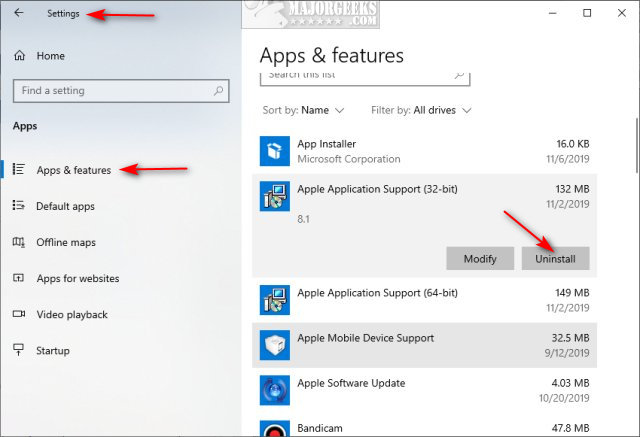
Click on Start > Settings > Apps. Scroll down and click on the app you want to remove. Click on Uninstall.
Windows 7, 8, Vista
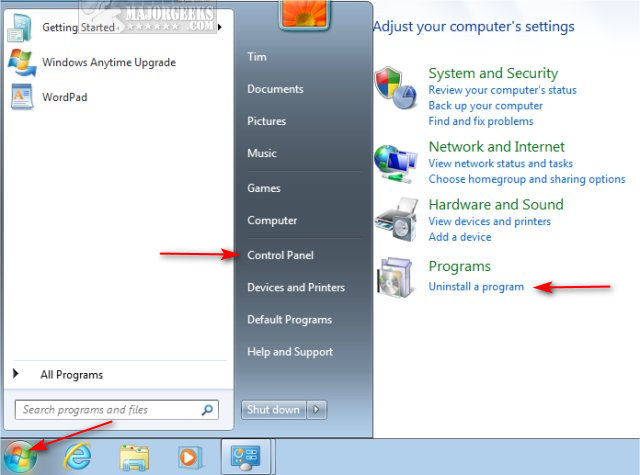
Click on Start > Control Panel > Programs or Uninstall a program. Double-click on any program to start the uninstaller.
Uninstalling Browser Extensions
There are many web browsers available, but the big three include Google Chrome, Mozilla Firefox, and Microsoft Edge.
Google Chrome:
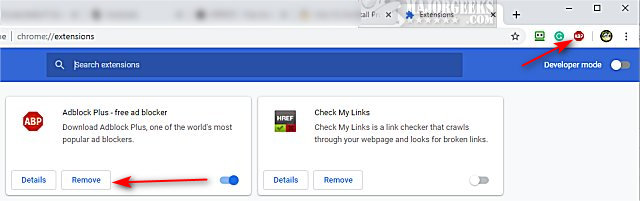
Right-click on the extension and click on Remove from Chrome. If the extension is hidden, click the three dots in the top right corner and click on More tools > Extensions. Click Remove next to any extensions you'd like to uninstall.
Mozilla Firefox:
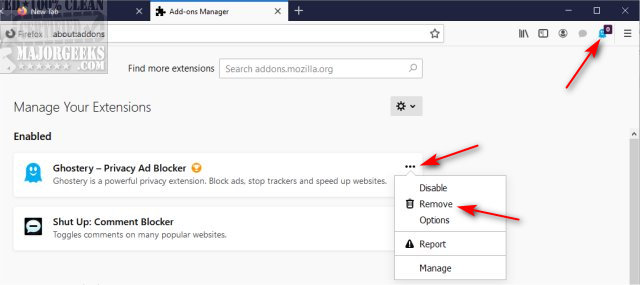
Right-click on the Add-on and click on Remove extension. If you don't see your Add-ons, click the three lines in the top-right corner and click Add-ons > Extensions. Click on the three dots next to the Add-on you want to remove and click on Remove.
Microsoft Edge:
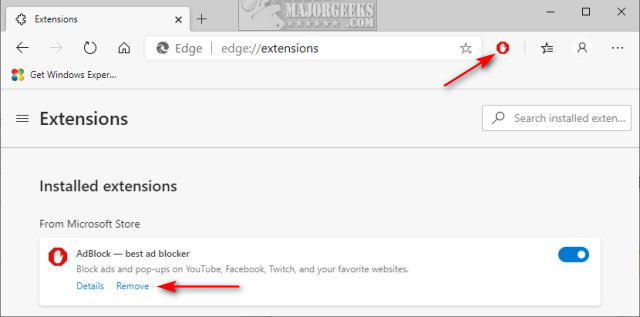
Right-click on the extension and click on Remove from Microsoft Edge. If you don't see your extension, click on the three dots in the top right corner and click Extensions. Click on Remove under the extension you want to remove.
Uninstalling Android Apps
Click and hold the app's icon and drag the app to your trash.
Similar:
How To Uninstall Programs
Remove Windows 10, 8 and 8.1 Built-In Apps Using PowerShell
How to Uninstall Programs Not Listed in Control Panel
How to Uninstall Suggested Apps and Ads in Windows 10 Settings
comments powered by Disqus
To simplify the process, we recommend you use an uninstaller to be sure the program is entirely uninstalled, including leftover files, registry entries, and more.
We recommend:
IObit Uninstaller
Wise Program Uninstaller
Uninstalling an application in Windows is slightly different depending on your Operating System, but you can find each in your Settings or Control Panel from the Start Menu.
Windows 10 & 11
Click on Start > Settings > Apps. Scroll down and click on the app you want to remove. Click on Uninstall.
Windows 7, 8, Vista
Click on Start > Control Panel > Programs or Uninstall a program. Double-click on any program to start the uninstaller.
Uninstalling Browser Extensions
There are many web browsers available, but the big three include Google Chrome, Mozilla Firefox, and Microsoft Edge.
Google Chrome:
Right-click on the extension and click on Remove from Chrome. If the extension is hidden, click the three dots in the top right corner and click on More tools > Extensions. Click Remove next to any extensions you'd like to uninstall.
Mozilla Firefox:
Right-click on the Add-on and click on Remove extension. If you don't see your Add-ons, click the three lines in the top-right corner and click Add-ons > Extensions. Click on the three dots next to the Add-on you want to remove and click on Remove.
Microsoft Edge:
Right-click on the extension and click on Remove from Microsoft Edge. If you don't see your extension, click on the three dots in the top right corner and click Extensions. Click on Remove under the extension you want to remove.
Uninstalling Android Apps
Click and hold the app's icon and drag the app to your trash.
Similar:
comments powered by Disqus
