


How To Enable, Disable, and Configure Search Indexing in Windows 11
By selma čitakovićon 01/11/2026 |
You know how Windows Search often takes ages to find specific files? Search indexing is designed to help you with that by creating an index of files on your PC. It can quickly look up the cataloged information, instead of searching for it from scratch. However, it has its limits.
The default indexing mode (Classic) will only target select folders. So, if the file you're trying to find is somewhere else, Classic mode can't help you. Alternatively, Enhanced mode will index your entire PC, but it's pretty resource-intensive. It can lead to increased CPU usage, temp spikes, and may drain your laptop battery. Additionally, the service has to be running all the time to stay accurate and track all changes.
As it stores this information, the index will grow in size - sometimes even dramatically in proportion to the file size. You may notice this if you have a large number of small files (<4 KB) or if you're indexing computer code.
So, if you're experiencing performance issues, running low on storage space, or you just don't find indexing all that useful, you can disable it. Or, you can make a compromise and configure the service to your liking. I'll show you how below!
Enable or disable search indexing via Services
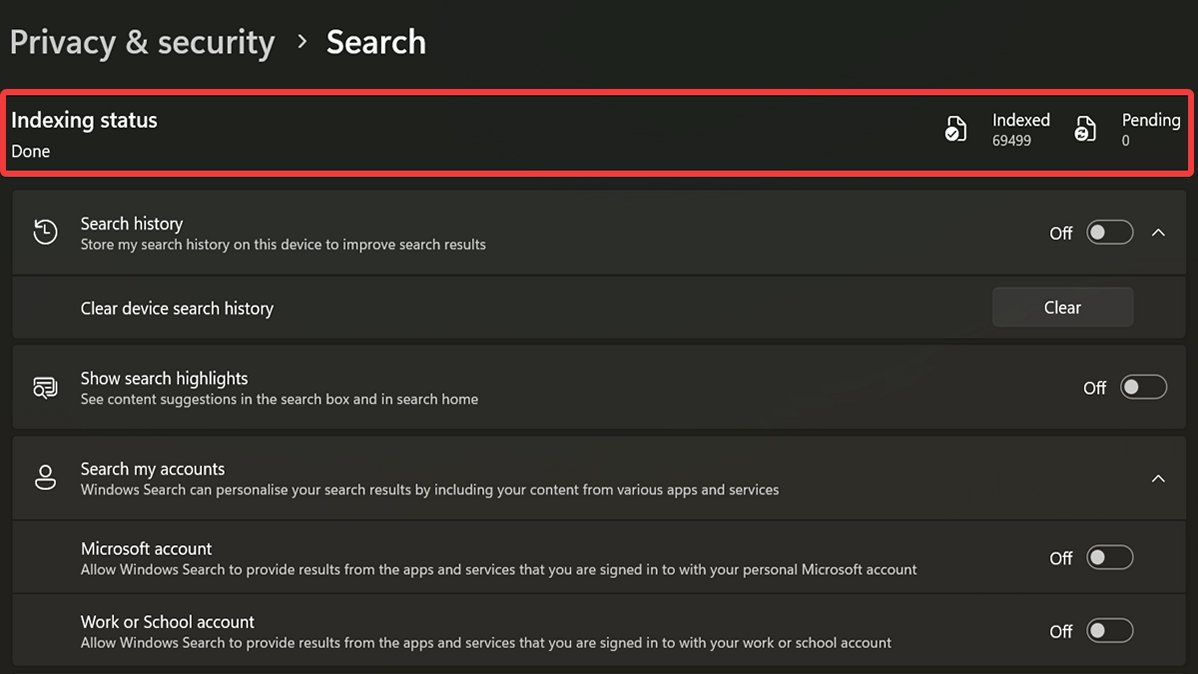
You can monitor your search indexing status in Settings > Privacy & security > Search. You'll see it at the top of the page, with a number of indexed and pending files.
If it's running, but you'd like to deactivate it:
- Type Services in Windows Search and click on Run as administrator.
- Scroll down to find Windows Search in the list of services and double-click it.
- Select Disabled as the Startup type, then click Apply.
- Click the Stop button under Service status, then OK.
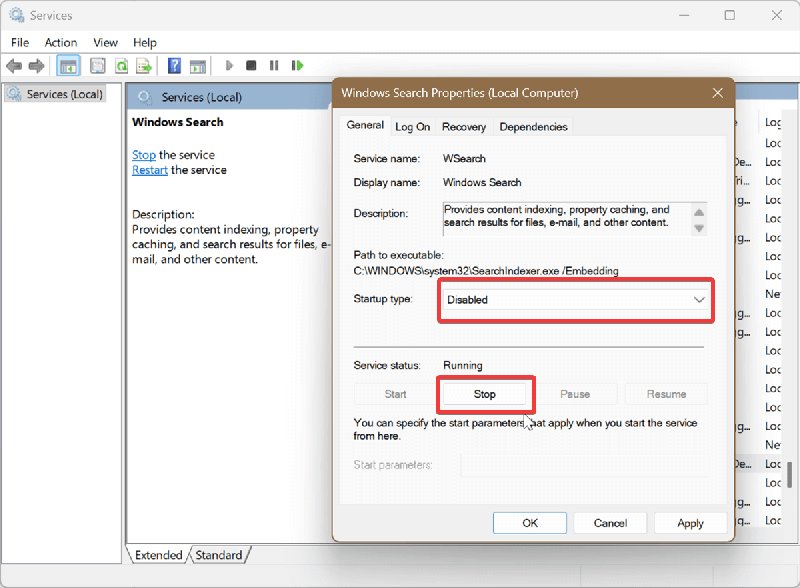
Now, to enable it, follow the first two steps and continue like this:
- Select Automatic (Delayed Start) as the Startup type, and click on Apply.
- Now, click the Start button under Service status.
- Once the status shows Running, click OK.
Enable or disable search indexing via Command Prompt
Once again, you'll need elevated rights to make these changes. Here's how to disable search indexing:
- Type CMD in Windows Search and click on Run as administrator.
- Type the following command and press Enter: sc stop "wsearch" && sc config "wsearch" start=disabled.
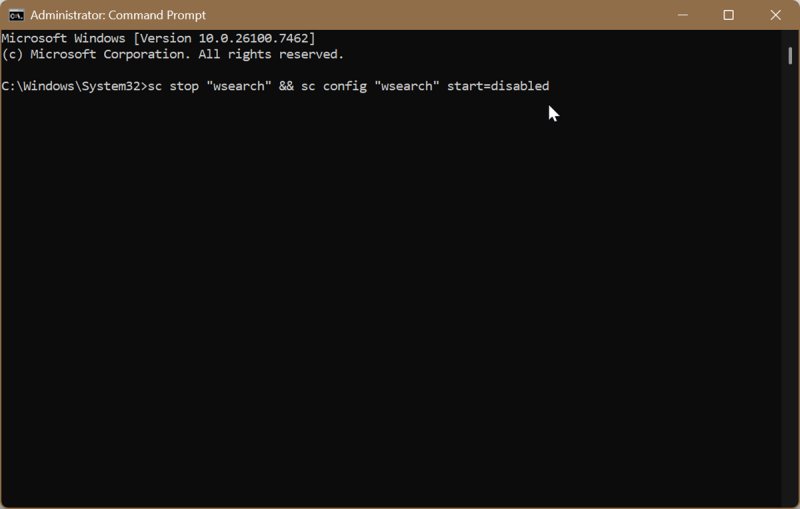
To enable it, use this command instead:
sc config "wsearch" start=delayed-auto && sc start "wsearch"
Moreover, once you disable the feature, you'll see a message on top of File Explorer saying: "Your searches might be slow because the index is not running. Click to turn on the index."
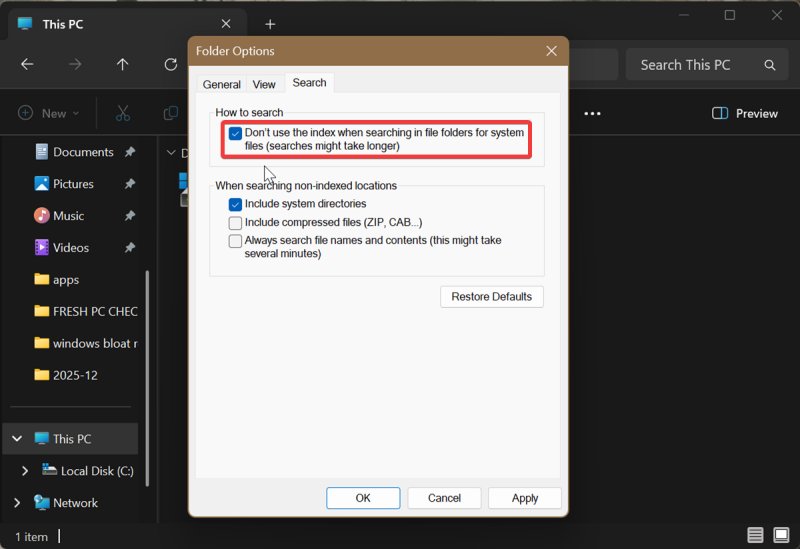
It will show up every time you try to search for files (annoying!) until you uncheck a related setting in Folder Options:
- Click the three dots in File Explorer, then select Options.
- Click the Search tab in Folder Options.
- Check Don't use the index when searching in file folders for system files (searches might take longer).
- Hit OK.
Configure search indexing
Don't want to disable the service outright, but you feel like it could run better? Classic mode is designed as the balanced option that won't impact your performance, but its scope is pretty limited. On the other hand, Enhanced mode indexes everything. Luckily, you can configure the scope for each.
First, go to Settings > Privacy & security > Search. In the Find my files section, you can customize search locations for Classic mode and add more if needed. Or, you can select Add an excluded driver to limit Enhanced mode.
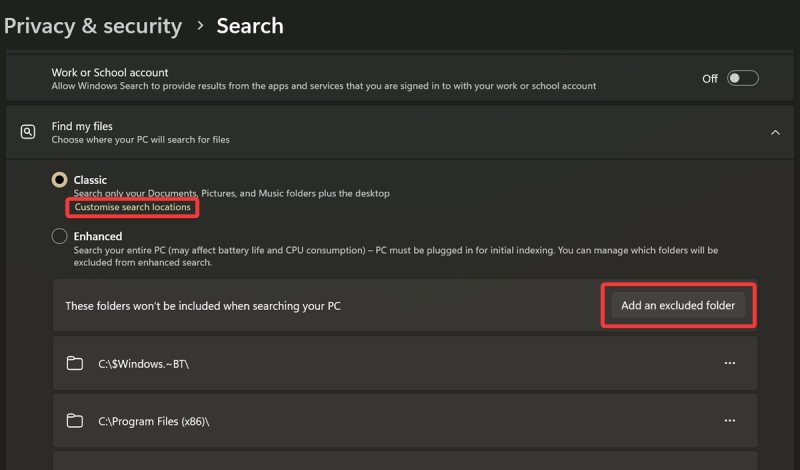
Additionally, you can choose which file types to index.
Scroll down and click on Advanced indexing options in Related settings. This will open Indexing Options. Select Advanced, then click the File types tab. You'll see a list of existing extensions to check/uncheck, and you can also add new ones.
Finally, Advanced options allow you to set up indexing for file properties only, or both properties and contents. The former is useful if you're trying to minimize the index size, but it can make some files harder to find. Content searching will take quite a bit longer without indexing, so keep that in mind as well.
Overall, search indexing can be useful, especially if you customize it and don't rely on the default settings. If it impedes your performance or you simply don't like it, feel free to turn it off.

|
selma citakovic
Selma is a gamer, geek and gremlin hunter with a passion for cyber security and smashing Windows bugs before they bite. She’s IBM-certified, loves real freeware, despises bloatware, and powers most of her troubleshooting with an unhealthy amount of coffee. |
comments powered by Disqus
