


How To Disable All Ads in Windows 11
By selma čitakovićon 01/10/2026 |
Windows has the unfortunate tendency to promote Microsoft services and apps in the form of "suggestions" and "tips." If you're tired of looking at pop-ups and recommendations, we've got you covered. This guide shows you how to disable 11 ad-related settings, step by step.
Some things are pretty similar to Windows 10, but Windows 11 has introduced new types of ads and moved the options around. Let's get into it.
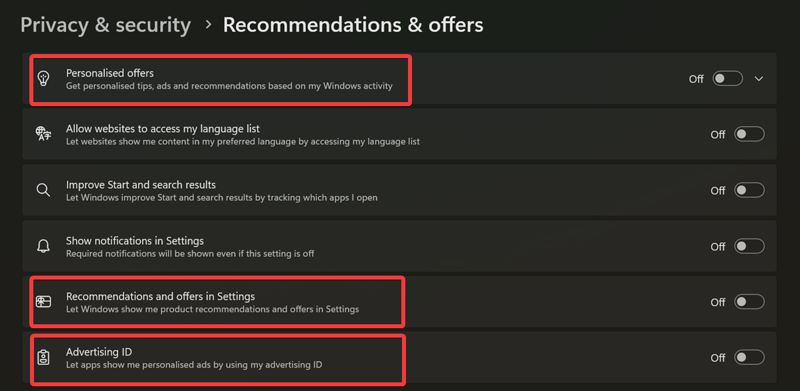
Personalized offers
First, let's focus on the Recommendations & offers section. It has quite a few questionable settings.
Personalized offers, for example, will provide you with tips, ads, and recommendations based on your Windows activity. How about no?
- Go to Settings > Privacy & security > Recommendations & offers.
- Toggle off Personalized offers.
Recommendations and offers in Settings
This option will show you product recommendations in Settings. To disable it:
- Go to Settings > Privacy & security > Recommendations & offers.
- Toggle off Recommendations and offers in Settings.
Advertising ID
Windows creates an advertising ID for each user. Apps and advertising networks can then use this personal info to deliver more relevant ads to you. If you hate the sound of that (and rightfully so), here's how to turn it off:
- Go to Settings > Privacy & security > Recommendations & offers.
- Toggle off Advertising ID.
Tailored experiences
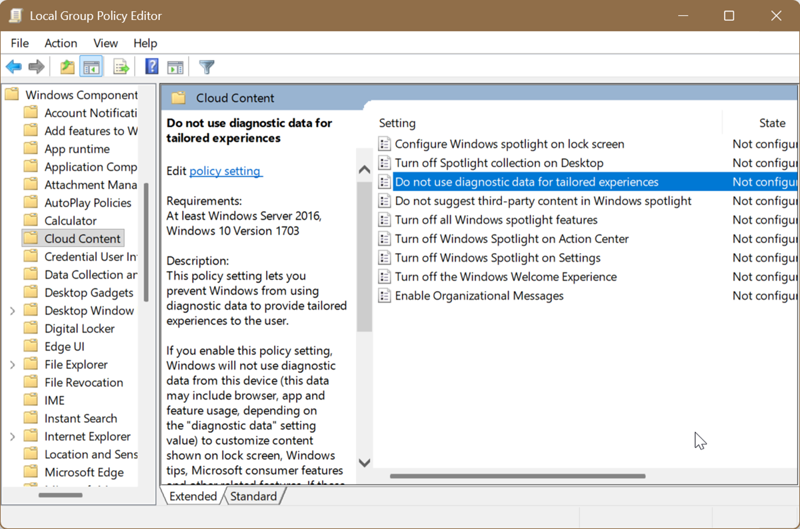
This is a strange one. Some users can find it in Settings > Privacy & security > Diagnostics & feedback, and just toggle it off. However, I couldn't find the option. If you also can't see it in the Settings, here's a workaround.
You'll need to be signed in as an administrator and use the Local Group Policy Editor. It's only available to Windows 11 Pro, Education, and Enterprise editions.
- Press Win + R together, type gpedit.msc, and press Enter.
- On the left panel, navigate to User Configuration > Administrative Templates > Windows Components > Cloud Content.
- On the right side, double-click on Do not use diagnostic data for tailored experiences.
- Select Enabled. It's a bit confusing, but you want to click that option to actually disable tailored experiences.
- Tap OK and close the editor.
Sync provider notifications in File Explorer
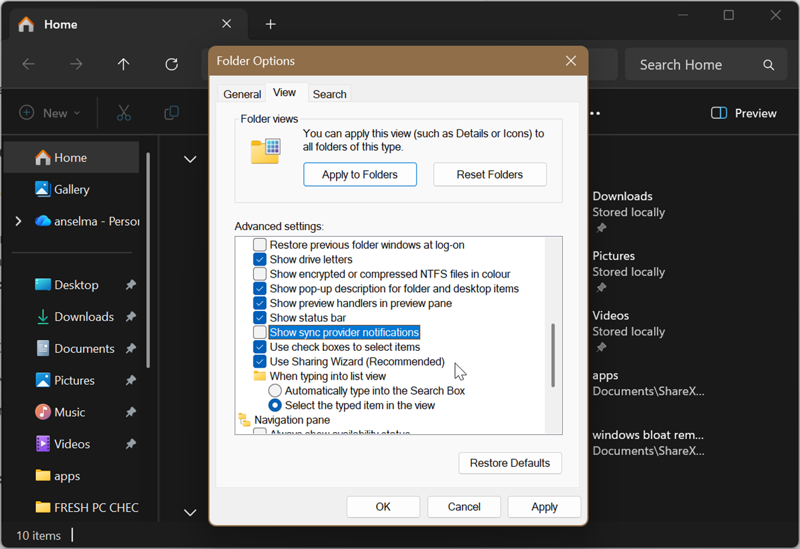
These notifications will pop up as you're searching for files and suggest new features. To turn them off:
- Open File Explorer and click the three dots in the command bar at the top.
- Select Options, then move to the View tab.
- Uncheck Show sync provider notifications, and click OK.
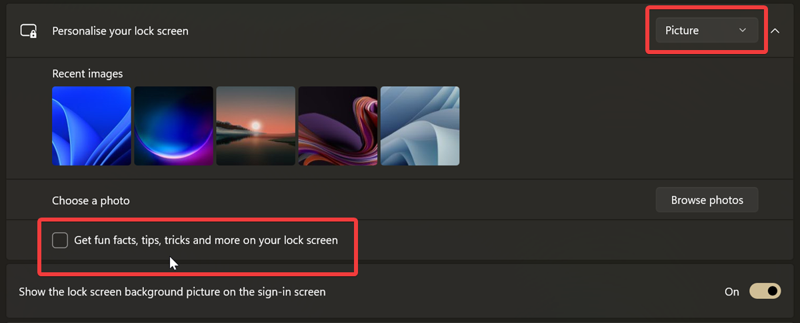
Get fun facts, tips, tricks, and more on your lock screen
"Fun facts" from Windows? No, thank you. Here are the steps to disable this:
- Go to Settings > Personalization > Lock screen.
- Select Personalize your lock screen and choose a picture or slideshow as your background.
- Uncheck Get fun facts, tips, tricks, and more on your lock screen.
Recommendations for tips, shortcuts, and new apps in the Start menu
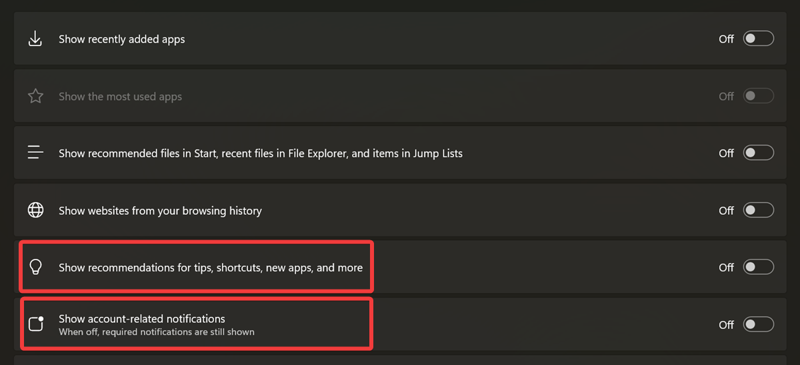
With this option enabled, you'll see suggested Microsoft apps in the already crowded default Start menu. Let's just turn it off:
- Go to Settings > Personalization > Start.
- Toggle off Show recommendations for tips, shortcuts, new apps, and more.
Microsoft account-related notifications in the Start menu
This setting will display notifications and reminders about apps connected to your Microsoft account, including subscriptions. So, for example, if your Xbox Game Pass expired, you'll get a "helpful" reminder about it and a Renew button right in the Start menu.
You can find it here:
- Go to Settings > Personalization > Start.
- Turn off Show account-related notifications.
Get tips and suggestions in Notifications
More popups and Windows tips! To disable them:
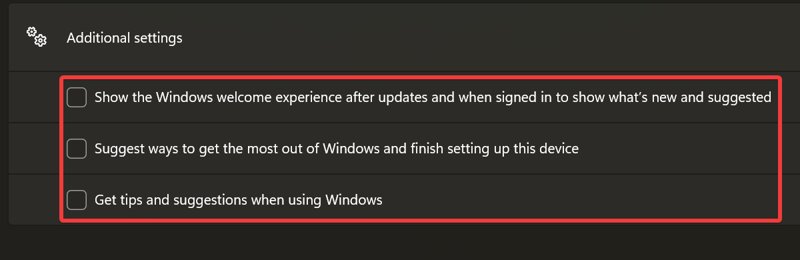
- Go to Settings > System > Notifications.
- Scroll down a bit and expand Additional settings.
- Uncheck Get tips and suggestions when using Windows.
Suggest ways to get the most out of Windows and finish setting up this device
If the "Let's finish setting up your device" screen keeps bugging you, I've got good news for you.
You can turn it off in the same section as in the previous step:
- Go to Settings > System > Notifications, and expand Additional settings.
- Uncheck Suggest ways to get the most out of Windows and finish setting up this device.
Show the Windows welcome experience
The Windows welcome experience will usually show after updates and feature what's new. To disable these unwelcome reminders, do this:
- Again, go to Settings > System > Notifications, and expand Additional settings.
- Uncheck Show the Windows welcome experience after updates and when signed in to show what's new and suggested.
That should be the last of them, for now at least. If there's anything ad-related I've missed, feel free to share in the comments.

|
selma citakovic
Selma is a gamer, geek and gremlin hunter with a passion for cyber security and smashing Windows bugs before they bite. She’s IBM-certified, loves real freeware, despises bloatware, and powers most of her troubleshooting with an unhealthy amount of coffee. |
comments powered by Disqus
