


AI Actions - What Are They and How To Enable/Disable Them
By selma čitakovićon 02/14/2026 |
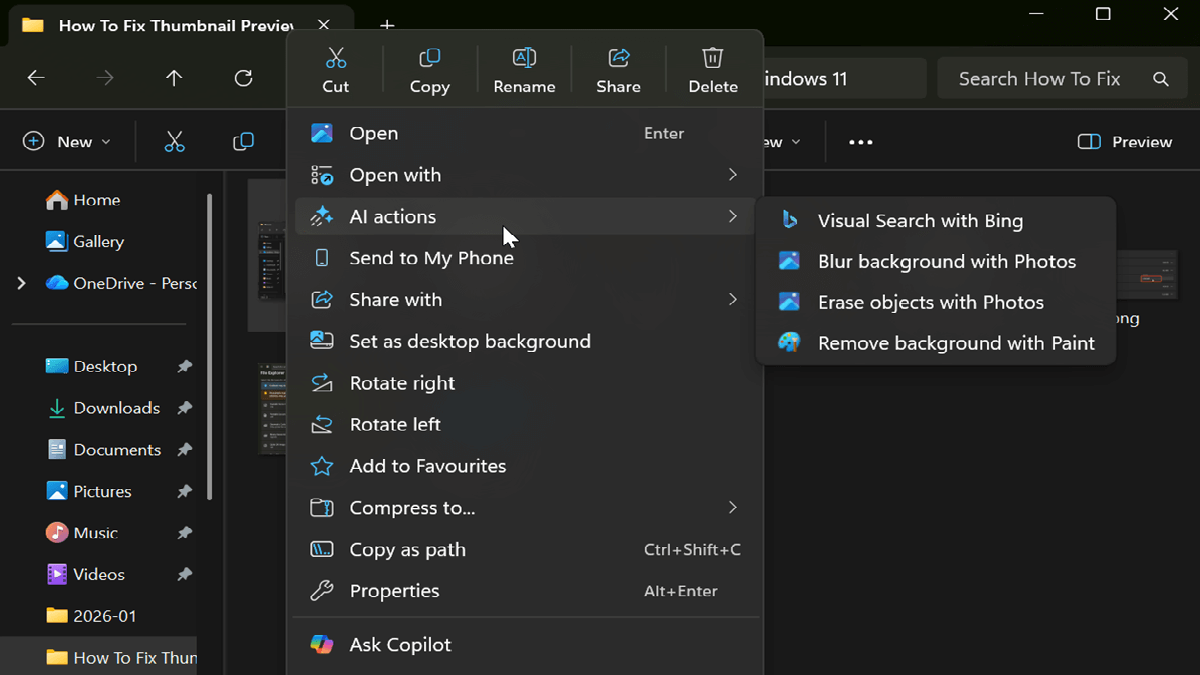
I finally got AI actions in a Windows update - not that I was looking forward to it. This feature has been gradually rolling out, starting with Windows 11 build 262100.6725 (24H2). It adds AI actions to your right-click context menu in File Explorer. You can then directly remove backgrounds from photos, erase objects, and more.
Is it a genuinely useful thing or just more pushy Windows bloat? I'll let you be the judge. But let's see what it is, how it works, and how to disable it if you end up disliking it.
What are AI actions?
AI actions are shortcuts in File Explorer to existing Windows 11 AI features. You can access them by selecting a file, right-clicking it, and then choosing AI features from the context menu. Currently, they're only available for images (.jpg, .jpeg, and .png) and Microsoft 365 files.
So, if you right-click a supported image, you should see four actions:
- Visual Search with Bing - Search the web with images to find similar pictures, identify places, plants, products, and more.
- Blur background with Photos - This shortcut opens the picture in the Photos app and automatically blurs the background.
- Erase objects with Photos - This opens the Generative Erase feature in Photos, where you can select and instantly remove unwanted elements.
- Remove background with Paint - Automatically delete the selected image's background in Paint.
As you can see, these actions are editing and search options that are integrated into the context menu. If you often use these in your daily workflows, great! You'll probably find them convenient, then. But if you don't need them, they're just taking up space in the already cluttered right-click menu.
Additionally, you can use AI actions for Microsoft 365 on your documents:
- Summarize - Generate summaries via Copilot of .doc, .docx, .ppt, .pptx, .pdf, .xls, .xlsx, .txt, .rtf, and .loop files you've stored in OneDrive and SharePoint.
- Create an FAQ - Generate a list of questions and answers with Copilot for .ppt, .pptx, xlsx, .pdf, .doc, .docx, .txt, .rtf, .aspx, .htm, and .html files.
However, these options are only available to Microsoft 365 subscribers with a Copilot subscription. You also have to be a part of the Microsoft 365 Insider program.
How to enable or disable AI actions
Initially, it wasn't possible to remove AI actions from the context menu. But thankfully, Microsoft listened to user feedback (read: a whole lot of people rightfully complaining about it) and made it optional.
Here's how to turn it on and off:
- Go to Settings > Apps > Actions.
- To keep AI actions in the context menu: Toggle on Microsoft 365 Copilot, Paint, and Photos.
- To remove AI actions: Toggle off all app actions, including Microsoft 365 Copilot, Paint, and Photos.
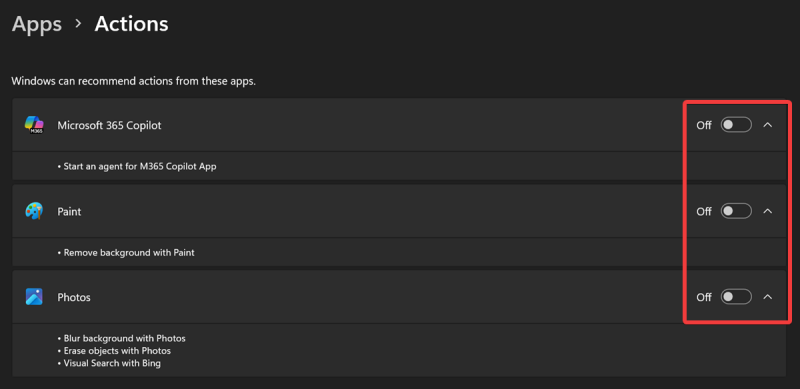
Enabling even just one of these will keep AI actions in your right-click menu, so keep that in mind.
Personally, I don't find them helpful at all since I don't need shortcuts for features I barely ever use. But there you have it, in case you do!

|
selma citakovic
Selma is a gamer, geek and gremlin hunter with a passion for cyber security and smashing Windows bugs before they bite. She’s IBM-certified, loves real freeware, despises bloatware, and powers most of her troubleshooting with an unhealthy amount of coffee. |
comments powered by Disqus
