


10 File Explorer Tips To Work Smarter
By selma čitakovićon 03/08/2026 |
Windows File Explorer has had an admittedly spotty track record as a file manager. Slowness, high CPU usage, and questionable UI design choices are only some of its problems. It's no wonder many users have switched to third-party alternatives. However, if you're still sticking to it, I've got some tips that will make it easier to use and improve your everyday productivity.
Here are ten simple things you can do to turn File Explorer to your advantage, and basically make it suck less.
File Explorer tabs
One of the biggest changes Windows 11 has introduced to File Explorer is the addition of tabs. Instead of opening a bunch of windows to switch between tasks as in the old times, you can use tabs just like on a browser.
You can even reuse the same browser shortcut to open them: Ctrl + T. To switch between tabs, press Ctrl + Tab. If you need to move files from one tab to another, just drag and drop them. It makes things so much easier.
Open directly to This PC
Don't like that File Explorer automatically opens to the Home window? No problem.
- Open File Explorer.
- Click the three dots in the command bar, then select Options.
- In the General tab, click on Open File Explorer to: and select This PC.
- Click Apply and OK.
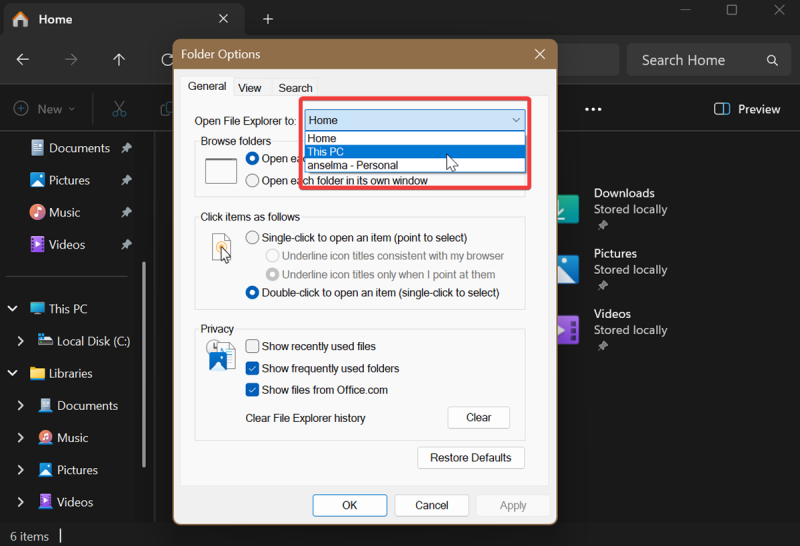
This is especially helpful if you're handling multiple partitions and drives, and you're tired of having to manually open This PC all the time.
Turn on checkboxes
Now, this is convenient. You can enable checkboxes next to items and easily select them as you're browsing files. To do so:
- Open File Explorer.
- Go to View > Show, and click on Item check boxes.
It's more efficient than holding down Ctrl and carefully scrolling and selecting.
Show file extensions
I still can't believe this option isn't enabled by default, but that's Windows for you. Here's how to make file extensions visible (as they should be):
- Open File Explorer.
- Go to View > Show, and select File Name Extensions.
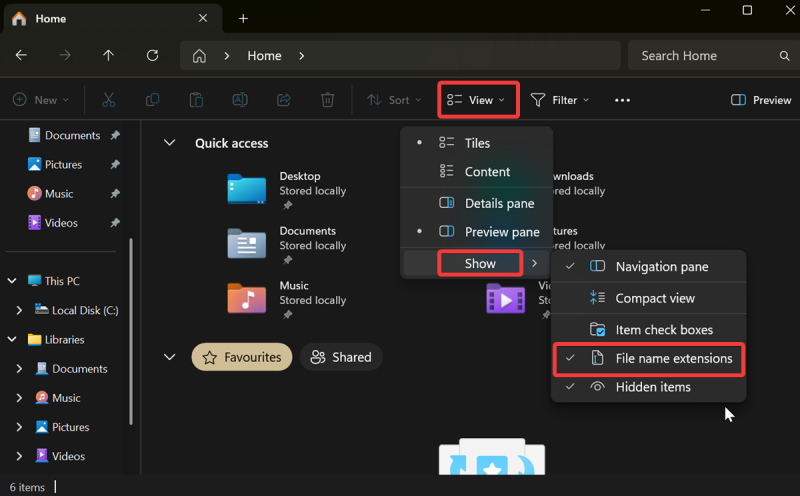
This way, it's easier to sort files, and you eliminate risks like malware executables masquerading under other file extensions.
Rename files in bulk
You can quickly rename multiple files at once by following these steps:
- Select the files and press F2 (or Fn + F2).
- Type in the name and press Enter.
Alternatively, click the Rename button in the command bar at the top, right after selecting. To undo these changes, just press Ctrl + Z.
Overall, this feature works, but it's nothing fancy. If you want more control over the renaming process, you're better off using PowerRename in PowerToys. You can bulk-rename without giving all the items the same name, replace only targeted sections of names, perform regular expression renames, and more. It's a much more powerful tool.
Copy file paths
Instead of manually typing file paths, you can simply copy their exact location. Just right-click the item and hit Copy as path. Or, use the keyboard shortcut: Ctrl + Shift + C.
This comes in handy when you need to execute commands with file paths in them, and in other troubleshooting situations.
Preview files
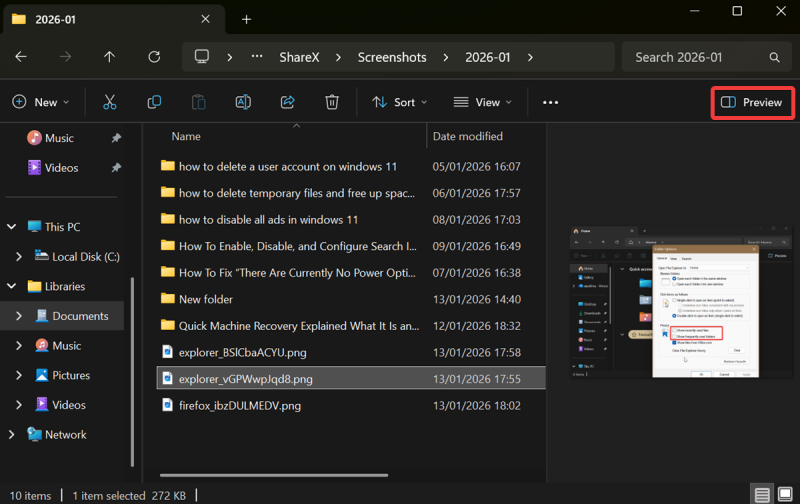
The built-in Preview pane gives you a peek into file contents without having to open them. You can preview documents, images, and videos. It's especially useful for skim reading PDF files.
To use it, press Alt + P. Or, click on the Preview icon in the top right corner of File Explorer.
Sort with filters
You can make Windows Search less painful by using filters. Click the Sort button in the command bar and filter by:
- Name
- Date
- Type
- Size
- Tags
- Date (created, modified, and taken)
- Dimensions
- Rating.
You can also organize them in ascending or descending order and combine filters.
Personalize the quick access section
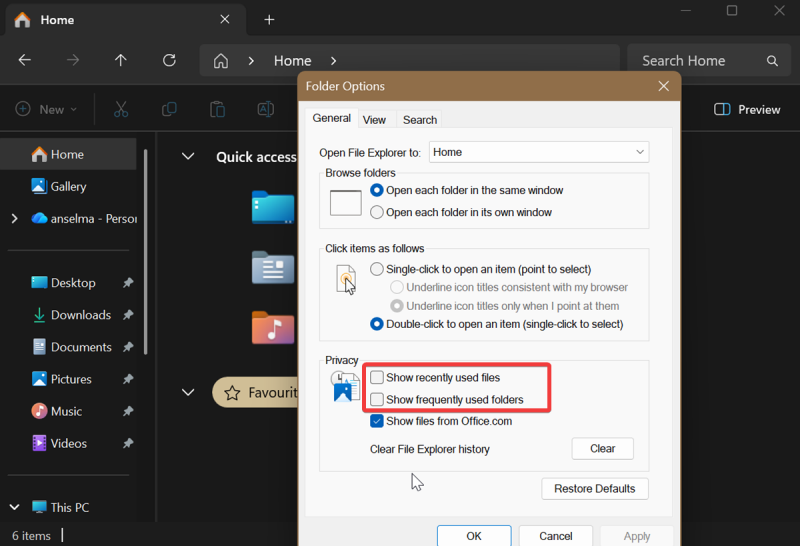
The quick access section is on the left side panel, with several pinned folders. By default, this includes Desktop, Documents, Music, Downloads, and other frequently used ones. You can add or remove them by right-clicking and selecting Pin to Quick Access/Unpin from Quick Access.
Additionally, you can change their order by dragging them around. Also, if you don't want to see some folders or files in this section, do this:
- Click the three dots in the command bar in File Explorer.
- Go to Options.
- In the General tab, uncheck Show recently used files and Show frequently used folders.
- Click Apply and OK.
Show libraries
This is an old feature that was visible by default on Windows 7, but starting with Windows 8, it stopped showing. Basically, it's a folder shortcut that gives you a more comprehensive overview on the left panel. You can easily access all the folders and subfolders of your Documents, Music, Pictures, and Videos libraries. Or, you can create new libraries.
To make it visible:
- Click the three dots in File Explorer.
- Go to Options.
- In the View tab, check the box for Show libraries.
- Click Apply and OK.
And that's all for now! Hopefully, these tips will make File Explorer more bearable to use and save you some extra clicks. Also, if you want to try something different, there's always Total Commander and Everything Search which is by far the best Windows search engine.

|
selma citakovic
Selma is a gamer, geek and gremlin hunter with a passion for cyber security and smashing Windows bugs before they bite. She’s IBM-certified, loves real freeware, despises bloatware, and powers most of her troubleshooting with an unhealthy amount of coffee. |
comments powered by Disqus
