


What Is a Security Identifier (SID) and How To Find It?
By selma čitakovićon 05/03/2026 |
![{$insert['content_title']](/content/file/5969_image2.png
)
Ever tried running a command that asks for a SID? This "security identifier" is a unique string value that represents a user/computer account, group, or process. It's how your operating system internally refers to accounts to authenticate them. Once a SID has been used to refer to a specific account or group, it can never be reused or shared.
Basically, they play an important part in authentication and access control. User account names can easily change, but the associated SIDs stay the same. They serve as permanent identifiers or security badges that let Windows know who you are and what you're allowed to do. When you log in, the operating system creates an access token that includes your user SID, group SID, and your user permissions.
You can find the SID for your current user account or all accounts in several ways, mostly command-based. Here they are!
SID of current user - WhoAmI
This command works with either PowerShell or Command Prompt:
- Press Win + R, type either cmd or powershell, and press Enter.
- Type the following command and press Enter: whoami /user
This is the easiest one for me to remember, so it's my personal go-to.
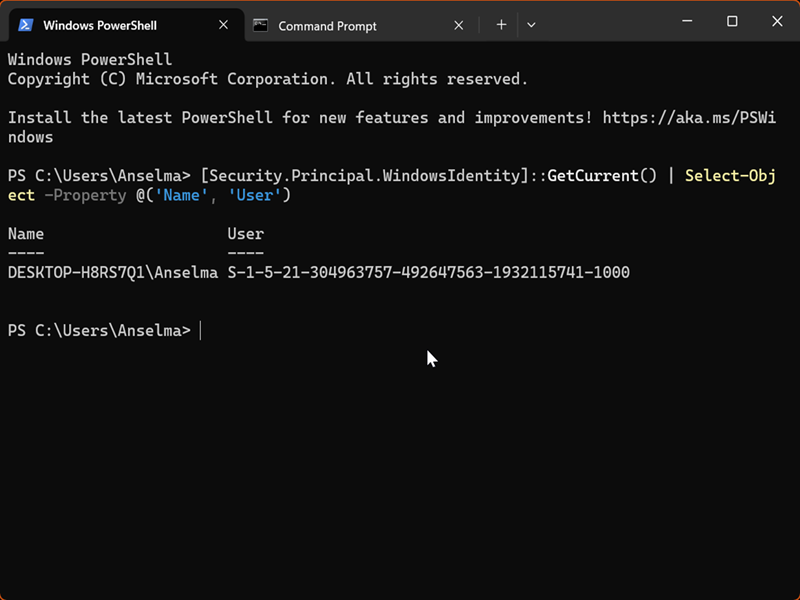
SID of current user - GetCurrent
You can use this one in PowerShell:
- Press Win + R, type powershell, and press Enter.
- Type the following command and press Enter: [Security.Principal.WindowsIdentity]::GetCurrent() | Select-Object -Property @('Name', 'User')
SID of current user - wmic useraccount
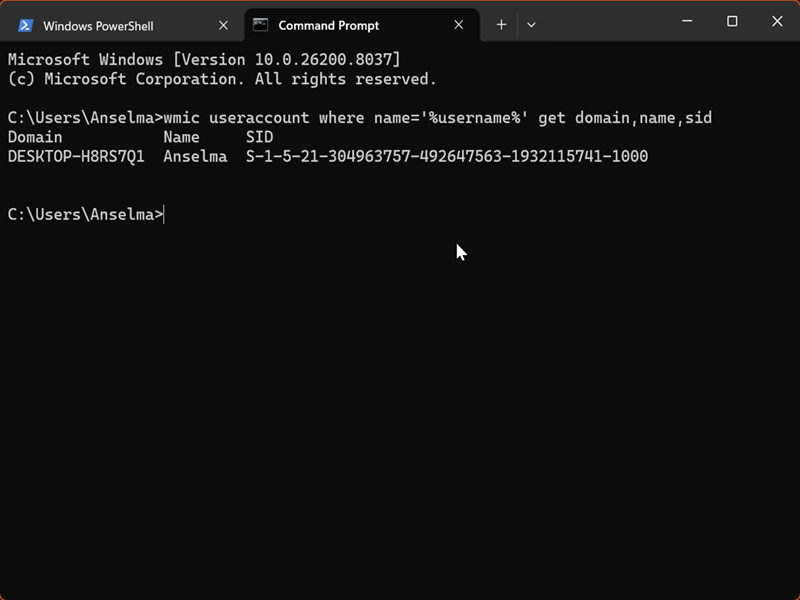
WMIC is deprecated and removed by default in the latest 24H2 and 25H2 installations. However, it's still available as a Feature on Demand that you can restore[a]. So, if you have this command-line tool, follow these steps:
- Press Win + R, type cmd, and press Enter.
- Type the following command and press Enter: wmic useraccount where name='%username%' get domain,name,sid
- Alternatively, you can use: wmic useraccount where name='username' get sid but make sure you replace 'username' with the one for your current user account.
SID of all users - Get-WmiObject
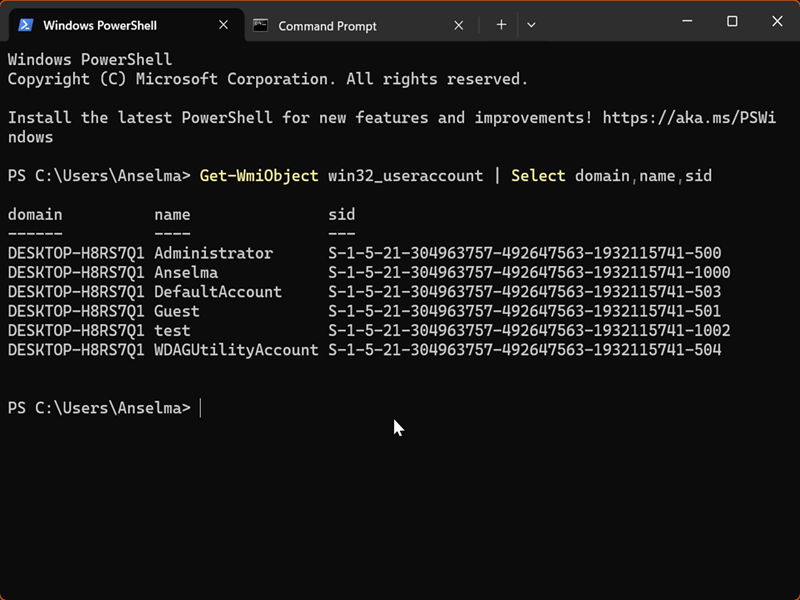
If you'd like a list of SIDs of all users, try this:
- Press Win + R, type powershell, and press Enter.
- Type the following command and press Enter: Get-WmiObject win32_useraccount | Select domain,name,sid
SID of all users - Get-LocalUser
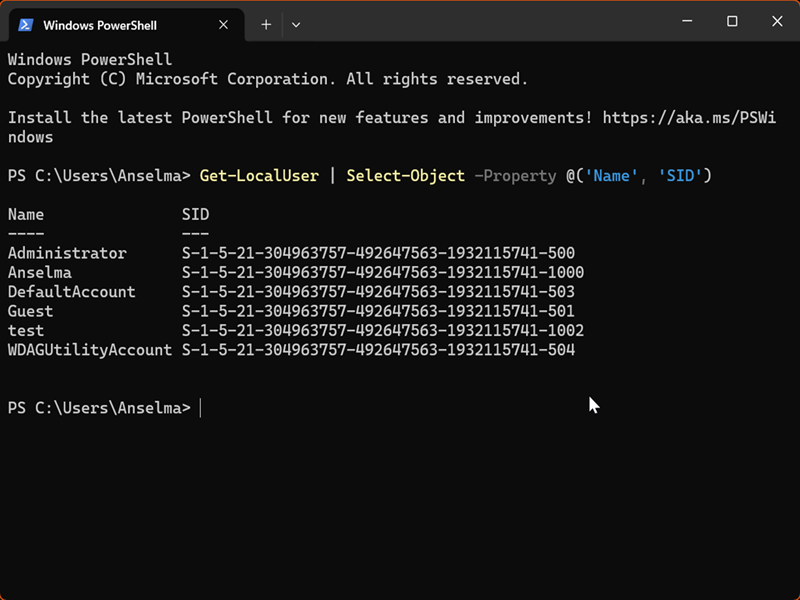
Here's another PowerShell command:
- Press Win + R, type powershell, and press Enter.
- Type the following command and press Enter: Get-LocalUser | Select-Object -Property @('Name', 'SID')
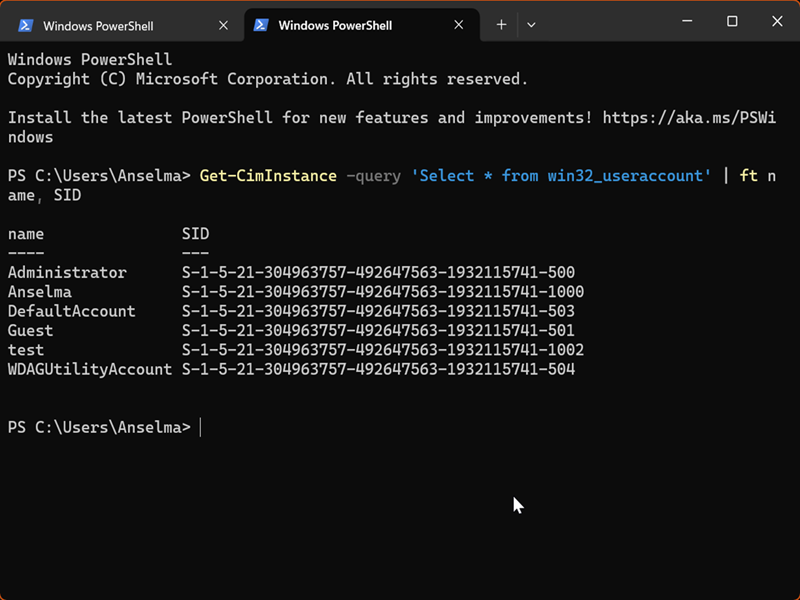
SID of all users - Get-CimInstance
And another one:
- Press Win + R, type powershell, and press Enter.
- Type the following command and press Enter: Get-CimInstance -query 'Select * from win32_useraccount' | ft name, SID
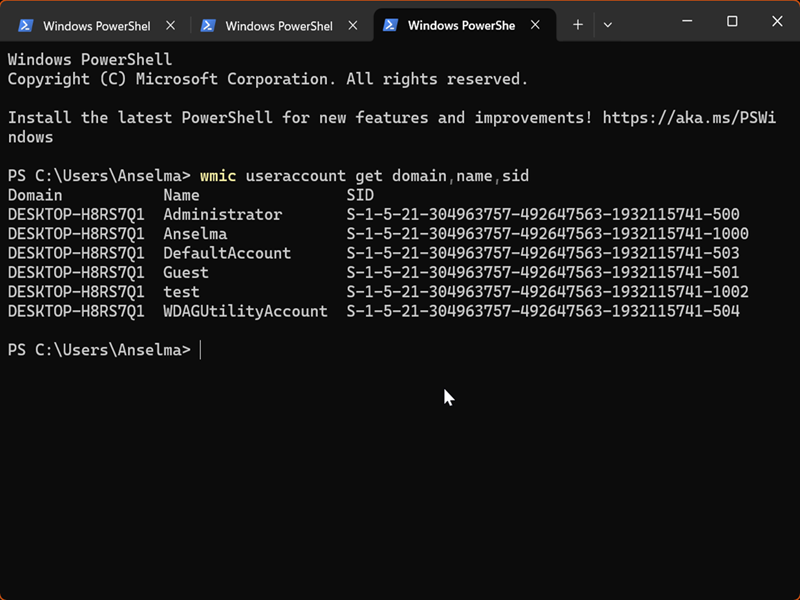
SID of all users - wmic useraccount
You can also use WMIC (if available) to display SIDs for all user accounts:
- Press Win + R, type either cmd or powershell, and press Enter.
- Type the following command and press Enter: wmic useraccount get domain,name,sid
SID of all users - Registry Editor
Lastly, if you don't feel like pasting commands, you can check the SIDs in the registry. We won't be changing any values, so don't worry about messing anything up.
Here's how to find them:
- Press Win + R, type regedit, and press Enter.
- Go to Computer\HKEY_LOCAL_MACHINE\SOFTWARE\Microsoft\Windows NT\CurrentVersion\ProfileList.
- Look at the subkeys under ProfileList on the left side. Each of them is a SID, with an associated profile. Look at the ProfileImagePath value on the right, and it will tell you the full path to the associated account's folder.
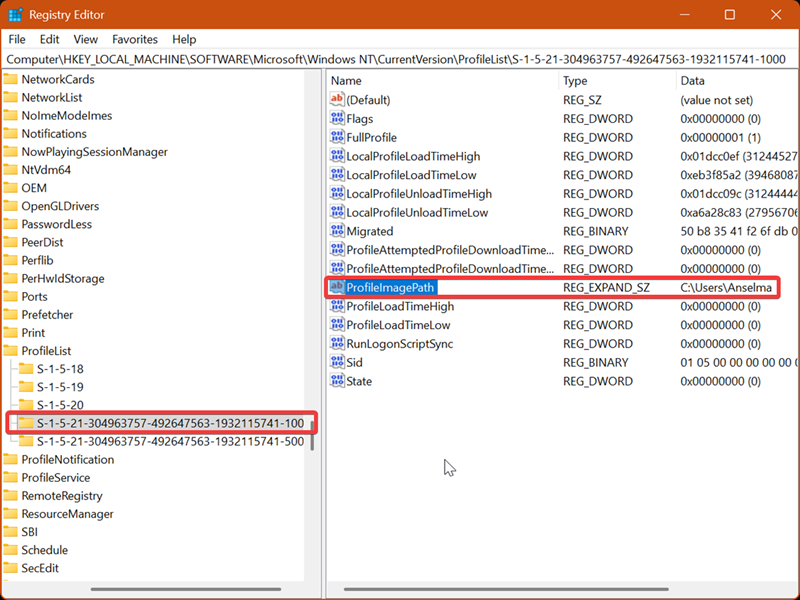
For example, S-1-5-21-304963757-492647563-1932115741-1000 is the SID for the C:\Users\Anselma profile folder path, in my case.

|
selma citakovic
Selma is a gamer, geek and gremlin hunter with a passion for cyber security and smashing Windows bugs before they bite. She’s IBM-certified, loves real freeware, despises bloatware, and powers most of her troubleshooting with an unhealthy amount of coffee. |
comments powered by Disqus
