


How to Clear Windows Update History in Windows 10 & 11
By Timothy Tibbettson 06/15/2023 |
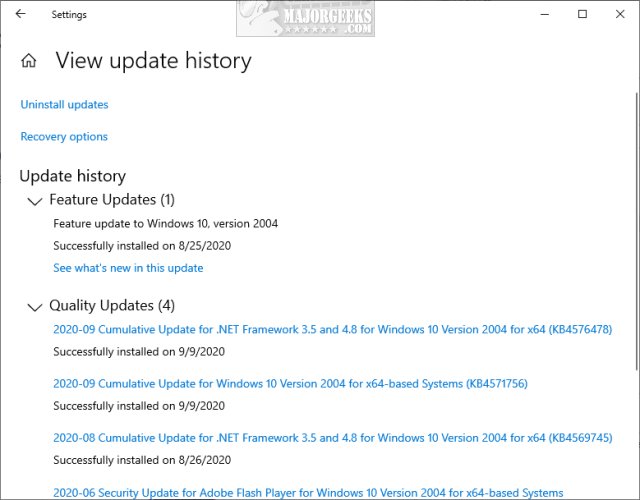
Windows 10 & 11 will automatically download and install updates, including Feature and Quality updates, drivers, definitions, and other miscellaneous updates. Windows Updates keeps a log of all installed updates, which can become longer over time. Here's how you can clear your Windows Update history.
There's no harm in deleting your Windows Update history, and Windows does not offer the option to delete it. Instead, we have a batch file that will clear your visible Windows updates history. Should you decide to uninstall an update later, try a free app like Windows Update MiniTool.
Video tutorial:
Download Clear The Windows Update History in Windows 10 & 11 and extract Clear Windows Update History.bat.
Right-click on Clear Windows Update History.bat and select Run as administrator.
Wait a minute while the steps are completed, as explained next.
This batch file will stop Services that prevent the deletion of Windows Update files. Next, it deletes the edb.log in the SoftwareDistribution folder and the contents of the UpdateStar folder, typically store.db. Finally, it restarts the Services previously stopped.
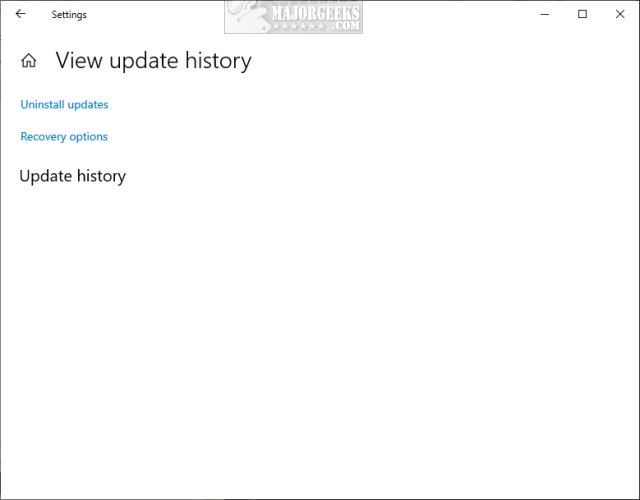
Open Windows Update and check your history.
Similar:
How to Delete the SoftwareDistribution Folder in Windows 10 & 11
How to Uninstall a Windows Update in Windows 10 & 11
How to View Windows Update History in Windows 10
How To Delete Pending Windows Updates
How to Check for and Install Windows Update in Windows 10 & 11
comments powered by Disqus
There's no harm in deleting your Windows Update history, and Windows does not offer the option to delete it. Instead, we have a batch file that will clear your visible Windows updates history. Should you decide to uninstall an update later, try a free app like Windows Update MiniTool.
Download Clear The Windows Update History in Windows 10 & 11 and extract Clear Windows Update History.bat.
Right-click on Clear Windows Update History.bat and select Run as administrator.
Wait a minute while the steps are completed, as explained next.
This batch file will stop Services that prevent the deletion of Windows Update files. Next, it deletes the edb.log in the SoftwareDistribution folder and the contents of the UpdateStar folder, typically store.db. Finally, it restarts the Services previously stopped.
Open Windows Update and check your history.
Similar:
comments powered by Disqus
